
Payment Setup Guide
Step-by-step guide to connect Stripe, MyPOS, BORICA, or offline payments — everything you need to start accepting orders.
Overview: Choosing Your Payment Provider
Ordering.Tools supports four payment methods, and you can enable multiple providers at the same time. Your customers will see all active methods during checkout and pick their preferred one.
• Stripe — International card payments (Visa, Mastercard, Apple Pay, Google Pay). Best for most restaurants. Supports 135+ currencies.
• MyPOS — Card payments popular in Bulgaria and Eastern Europe. Uses the MyPOS IPC payment page.
• BORICA — Bulgarian national card processor. Customers are redirected to BORICA's secure payment page. Ideal for Bulgarian merchants with a BORICA acquiring agreement.
• Offline (Cash) — No online processing. Customers pay in person on pickup or delivery.
All online payments are secure — card details are entered directly on the provider's page, never on your website. Go to Integrations in the admin sidebar to get started.
You can activate multiple payment methods. For example, enable both Stripe and Cash so customers can choose between online card payment and paying in person.
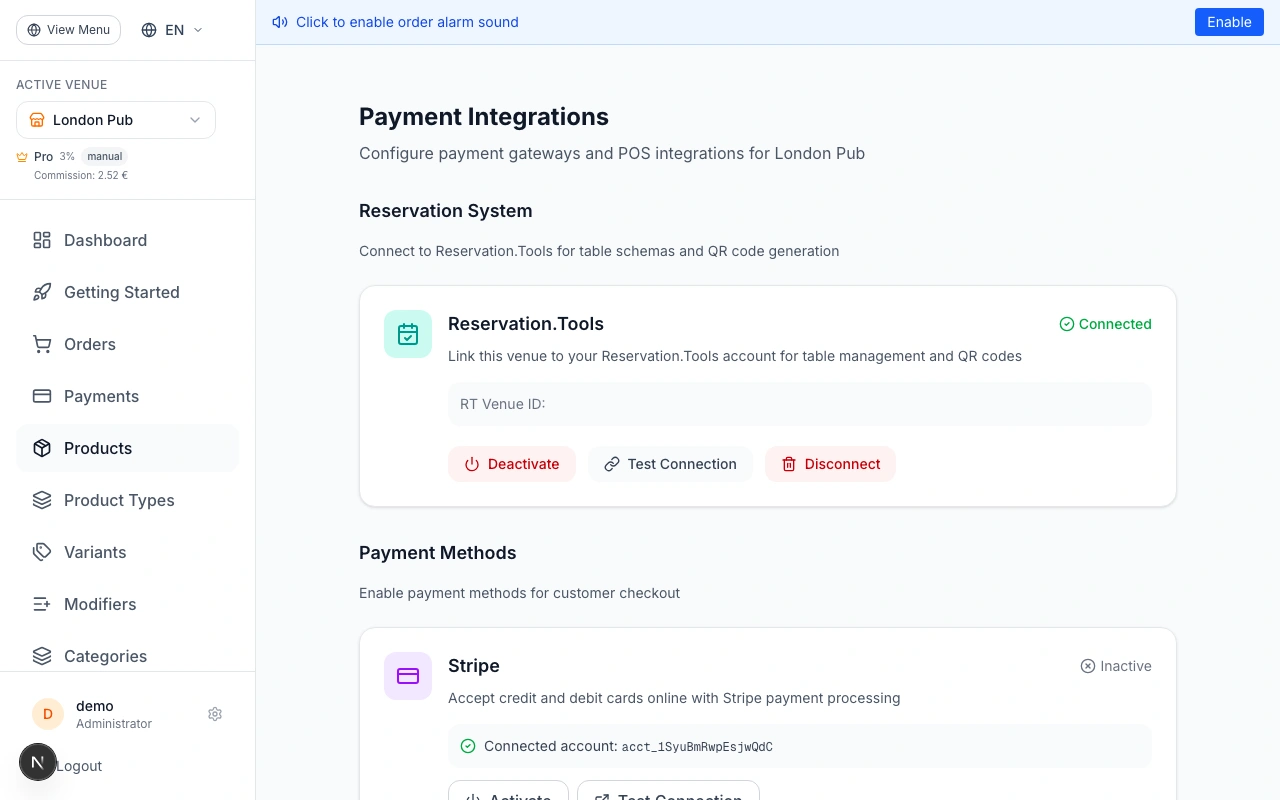
Option A: Connect Stripe
Stripe is the recommended option for most restaurants. Setup takes about 5 minutes.
1. Go to Admin → Integrations and find the Stripe card.
2. Click "Connect with Stripe" — you'll be redirected to Stripe's onboarding page.
3. Create a Stripe account (or log in to an existing one). Stripe will ask for your business details, bank account for payouts, and identity verification.
4. After completing onboarding, you're redirected back to the admin panel. Stripe is now connected and active.
5. That's it — your venue can now accept Visa, Mastercard, Apple Pay, and Google Pay.
If you already have a Stripe account with an Account ID (acct_...), publishable key, and webhook secret, you can use the "Advanced: Manual Configuration" option instead. This is only recommended for developers.
Stripe pays out to your bank account on a rolling basis (typically 2-7 business days depending on your country). You can track all payments in your Stripe Dashboard at dashboard.stripe.com.
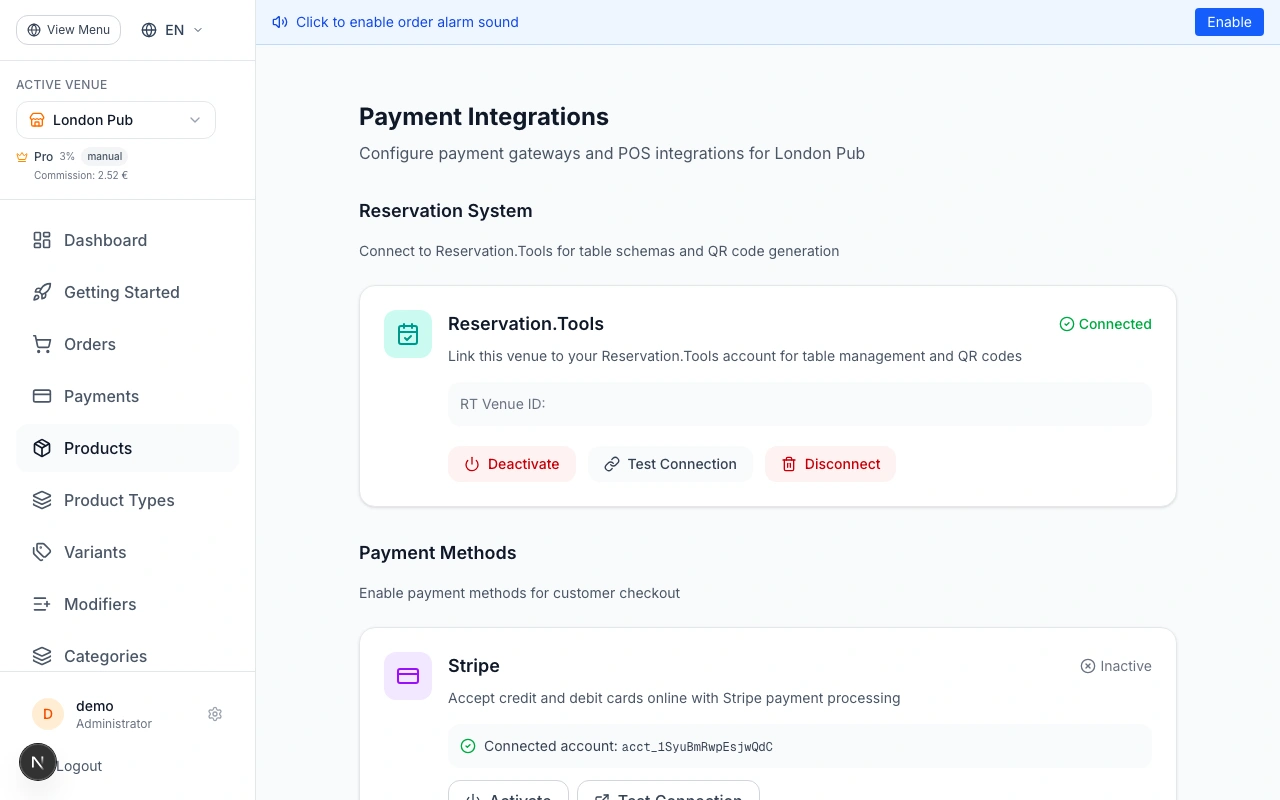
Option B: Connect MyPOS
MyPOS is popular with Bulgarian and Eastern European restaurants. You need an active MyPOS merchant account.
1. Log in to your MyPOS account at mypos.com and navigate to Online Payments → Config Packs.
2. Generate a new config pack — MyPOS will provide you with a text block (base64-encoded configuration).
3. In your admin panel, go to Integrations and find the MyPOS card.
4. Paste the entire config pack text into the "Config Pack" field. The system automatically extracts your Store ID, Wallet number, Key Index, and encryption keys.
5. Select your currency (EUR is the default).
6. Click "Connect MyPOS".
Once connected, customers who choose MyPOS at checkout are redirected to the MyPOS secure payment page, enter their card details, and are returned to your order confirmation page.
The config pack contains everything needed — you don't need to enter any fields manually. If you don't have a MyPOS account yet, visit mypos.com to apply for a merchant account.
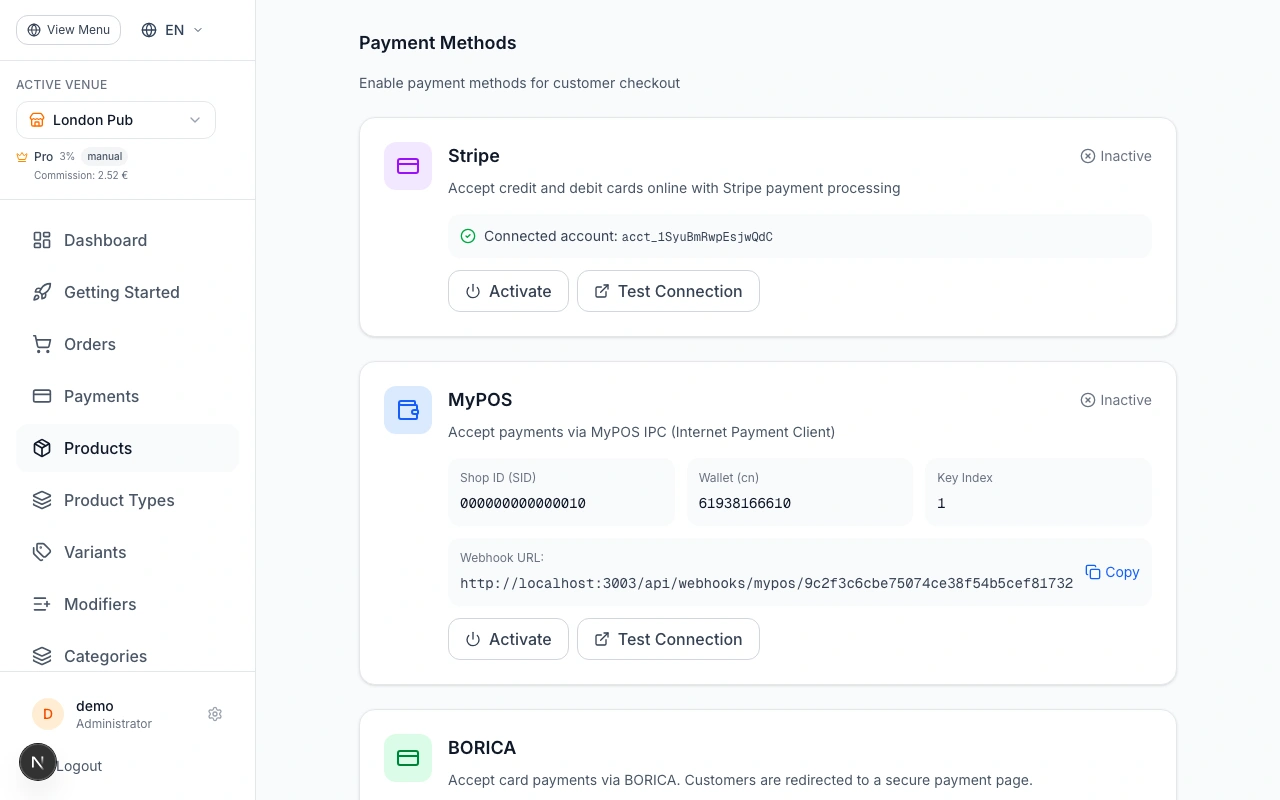
Option C: Connect BORICA
BORICA is the Bulgarian national card payment processor. To use BORICA, you need an acquiring agreement with a Bulgarian bank that works with BORICA.
Before you start in the admin panel, you need to complete these preparation steps:
1. Contact your acquiring bank or email [email protected] to request eCommerce terminal credentials. They will provide your Terminal ID (8 characters, e.g. V1800001) and Merchant ID (10 digits).
2. Generate an RSA private key on your computer:
openssl genrsa -out merchant.key 2048
3. Generate a Certificate Signing Request (CSR):
openssl req -new -key merchant.key -out merchant.csr
Fill in: CN = your domain, OU = Terminal ID, O = company name, C = BG.
4. Log in to the BORICA Merchant Portal (3dsgate-dev.borica.bg for test, 3dsgate.borica.bg for production) and upload your CSR. BORICA will sign it.
Now configure in the admin panel:
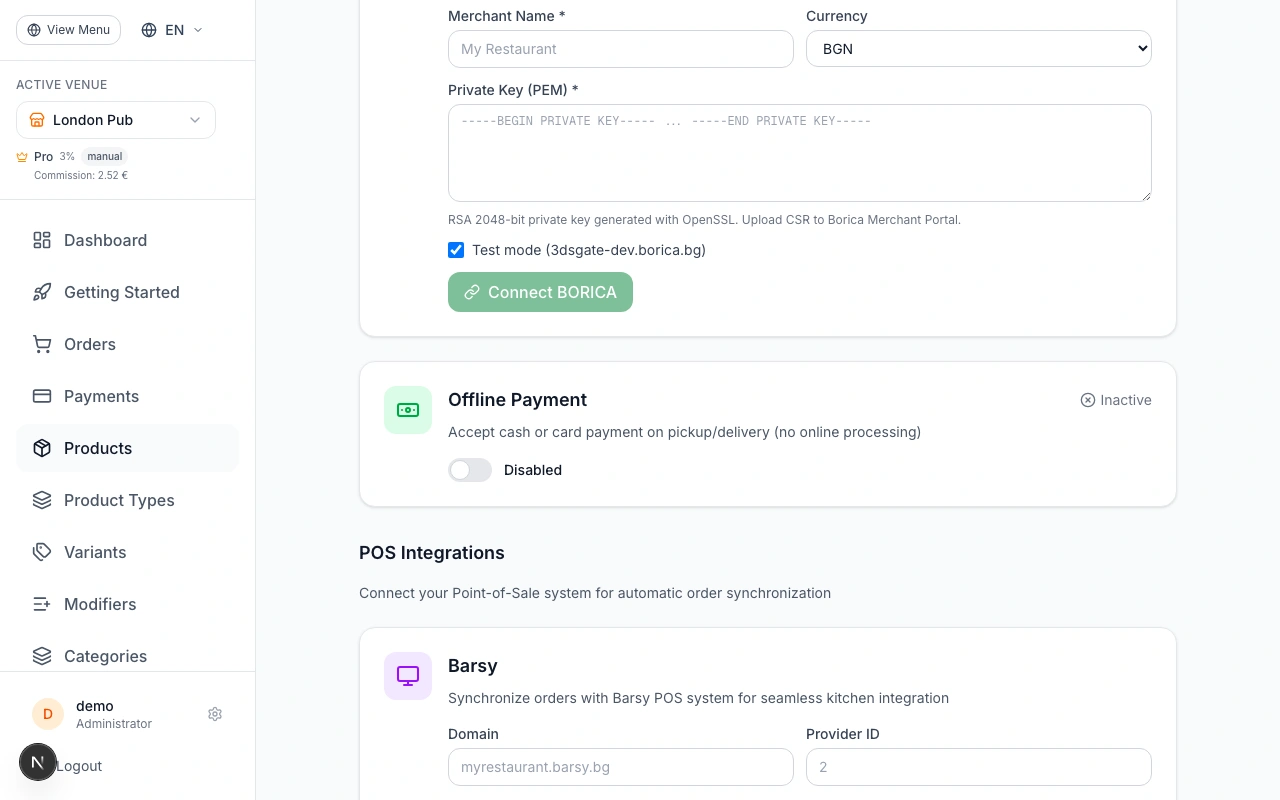
5. Go to Integrations and find the BORICA card.
6. Enter your Terminal ID, Merchant ID, and Merchant Name (shown to customers on the payment page).
7. Select your currency (must match your terminal configuration — typically EUR).
8. Paste the contents of your merchant.key file into the Private Key field.
9. Check "Test Mode" if you're using test credentials.
10. Click "Connect BORICA".
11. Copy the BACKREF URL shown after connecting and configure it in the BORICA Merchant Portal as the return URL for your terminal.
For testing, use these test cards: Visa 4341 7920 0000 0044 or Mastercard 5100 7899 9999 9895 — any CVV, any future expiry, 3DS password: 111111.
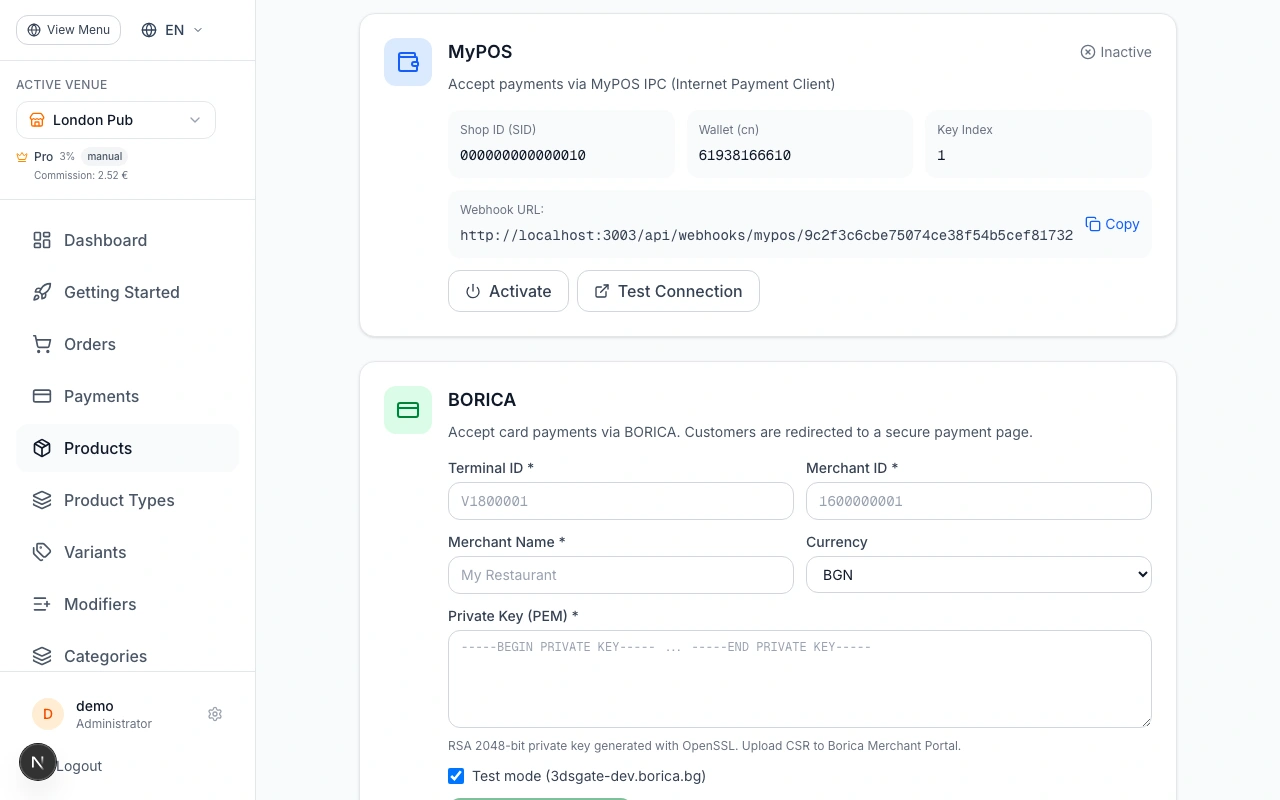
Option D: Enable Offline (Cash) Payments
Offline payment lets customers place orders and pay in person when they pick up or receive their delivery. No payment provider account is needed.
1. Go to Admin → Integrations and find the "Offline Payment" card.
2. Click "Enable" — that's it.
When a customer selects offline payment at checkout, the order is created immediately with a "Pay on pickup/delivery" status. You'll receive the order notification as usual and can prepare it right away. Collect payment from the customer when they arrive.
Offline payment is great as a fallback option alongside card payments. Even if you primarily use Stripe or MyPOS, enabling cash payments gives customers flexibility.
Configure Tipping
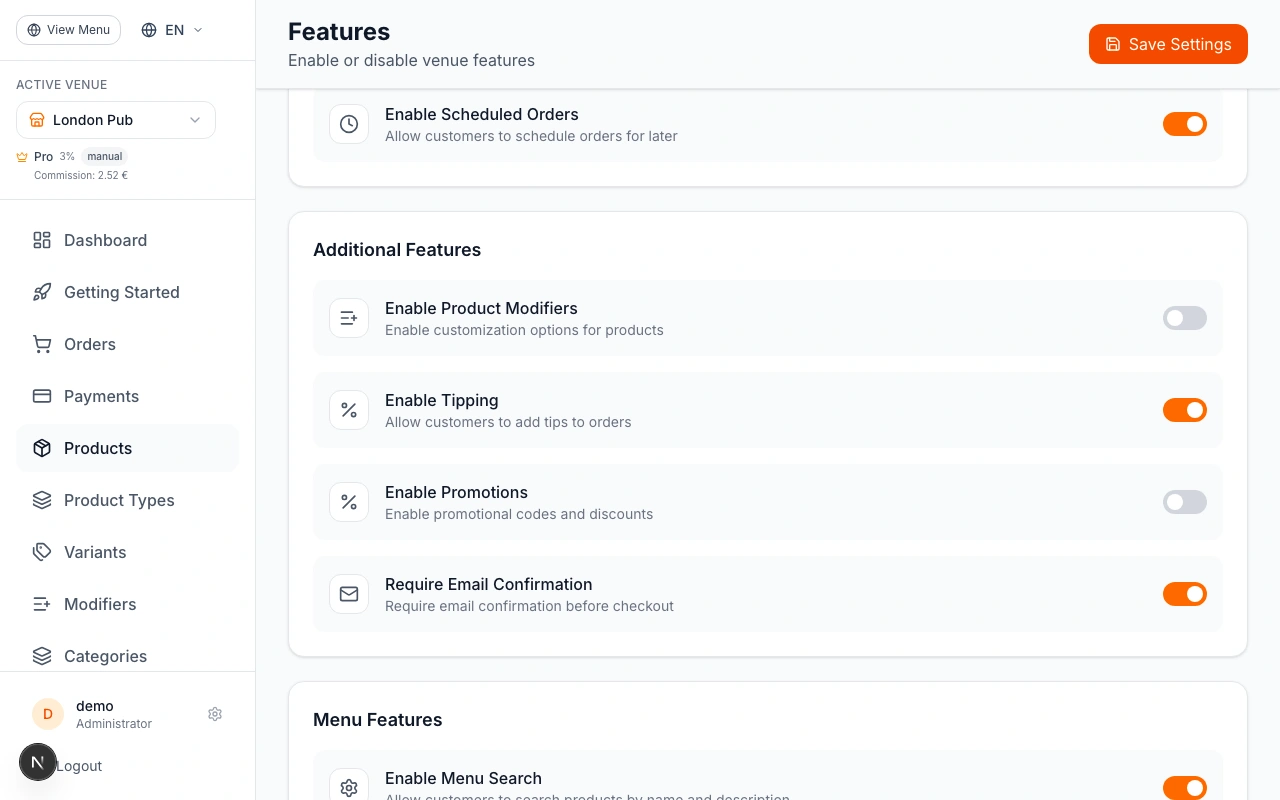
If you'd like to accept tips, go to Admin → Settings and enable the "Tipping" feature. When enabled, customers will see tipping options during checkout — they can pick a preset percentage (5%, 10%, 15%) or enter a custom amount.
Tips are added to the order total and processed through your active payment provider. For offline payments, the tip amount is shown on the order so your staff knows the expected total.
Test Your Setup
Before going live, place a test order to verify everything works:
1. Open your venue's public menu (the link is in Admin → Settings).
2. Add items to the cart and proceed to checkout.
3. Select your payment method and complete the order.
4. For Stripe: use test card 4242 4242 4242 4242, any future expiry, any CVC.
5. For MyPOS: use the test credentials from your MyPOS sandbox.
6. For BORICA: use test cards listed in step 4 with password 111111.
7. Verify you receive the order confirmation email.
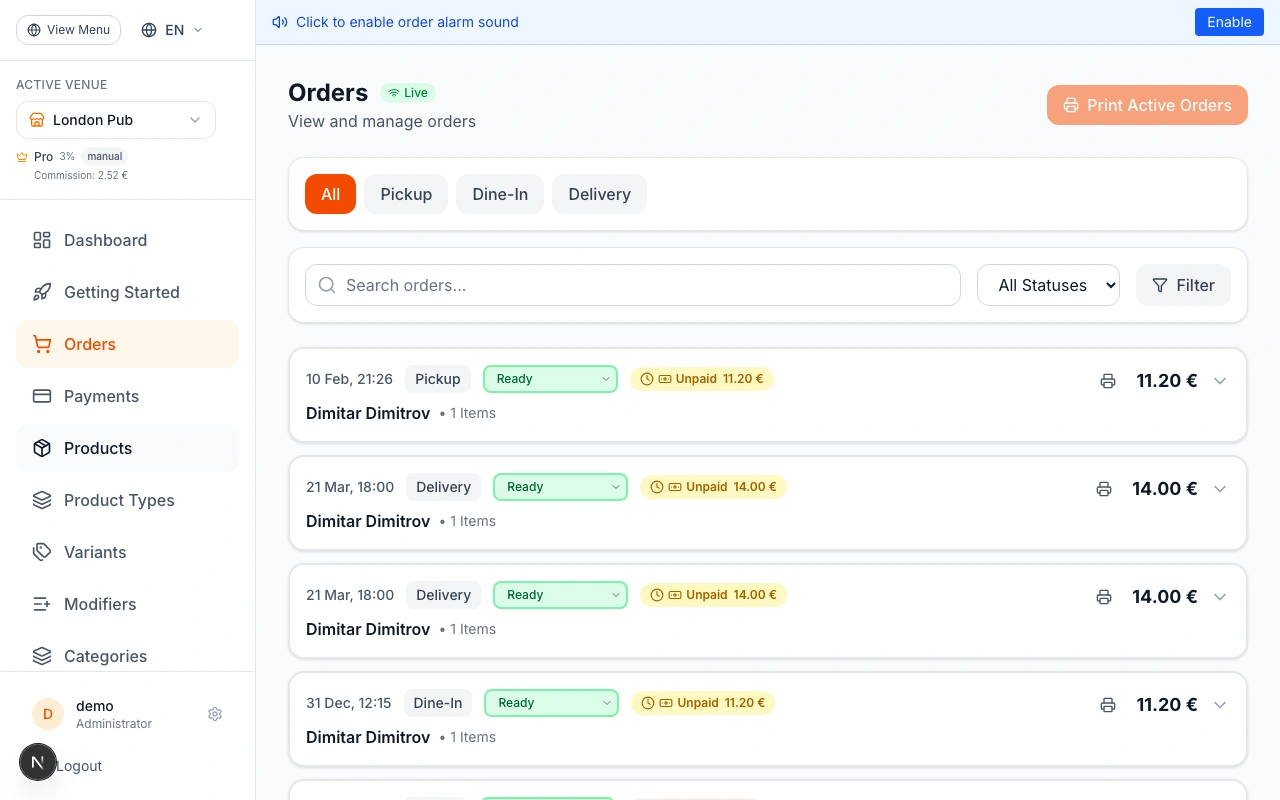
8. Check that the order appears in Admin → Orders with the correct status.
Once satisfied, activate the integration and start accepting real orders!
Remember to switch from test mode to production mode before accepting real payments. For Stripe, this happens automatically when you complete onboarding. For BORICA, uncheck "Test Mode" and update to production credentials.
Ready to Get Started?
Apply what you've learned and set up your restaurant in minutes