
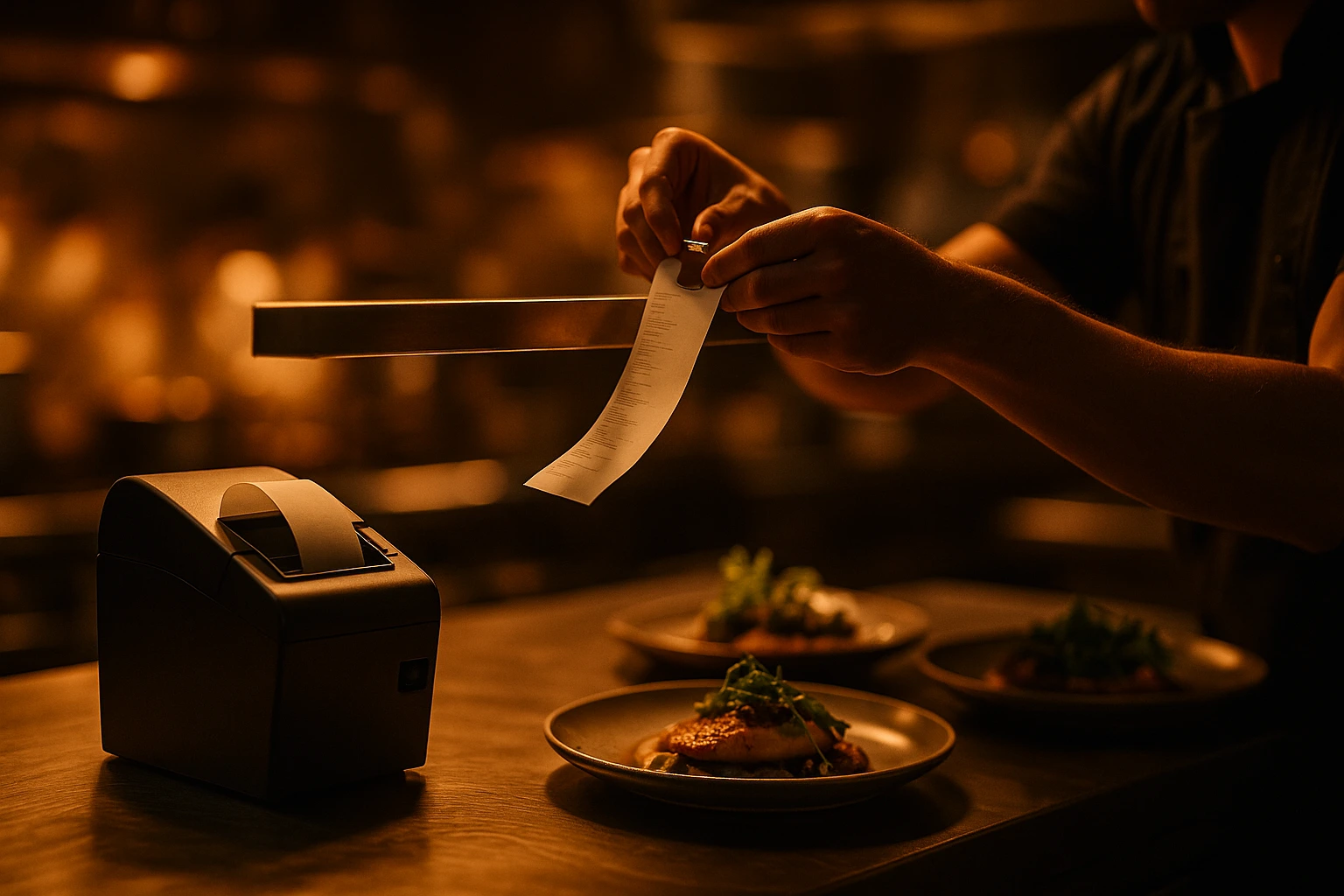
Thermal Printing That Never Misses a Ticket
Every online order prints on your kitchen thermal printer the moment it arrives. Auto-print runs in the background. No tapping screens, no refreshing tabs. Paper does not crash.
Why Paper Still Wins in the Kitchen
Screens freeze. Tablets run out of battery. WiFi drops mid-rush. A thermal printer just prints. Every order comes out on an 80mm receipt -- items, modifiers, prices, customer name, order type -- ready to pin on the rail. Your line cooks do not need to learn new software. They read the ticket and start cooking.
Ordering.Tools connects to your thermal printer through a small desktop app called QZ Tray. Once installed, receipts print silently -- no browser popups, no "choose your printer" dialogs. If QZ Tray is not installed, the browser print dialog appears instead. Either way, the order gets printed.
What This Means for Your Kitchen
Zero Missed Orders
Turn on auto-print. Every new order prints the second it comes in. Nobody has to watch a screen or click anything. The ticket is on the rail before the kitchen even looks up.
No Popups, No Dialogs
QZ Tray sends the receipt straight to your default printer. No browser window opens. No confirmation clicks. Your staff keeps their hands on the food, not the mouse.
Works on Any Setup
No QZ Tray installed? The browser print dialog opens instead. It works on any computer, tablet, or shared workstation. You can upgrade to silent printing later -- five minute install.
Backup When Screens Fail
Friday night rush. Your KDS tablet freezes. With auto-print running on a second device, every order is still on paper. The kitchen keeps moving.
Setup in Four Steps
Install QZ Tray (Optional)
Download QZ Tray from qz.io. It is a small app that runs in the background and connects your browser to your printer. Takes about five minutes. Skip this step if you are fine with the browser print dialog.
Plug in Your Thermal Printer
Connect any standard 80mm thermal receipt printer via USB, network, or Bluetooth. Set it as your default printer in your operating system settings. That is all the hardware setup you need.
Print Your First Order
Open the Orders page in admin. Click the printer icon on any order. If QZ Tray is running, the receipt prints instantly. If not, your browser print dialog opens. Either way, the order is on paper in seconds.
Turn on Auto-Print
Go to Settings, then Printing. Enable auto-print. From now on, every new order prints automatically the moment it arrives. This setting is per-device -- enable it on the kitchen computer and leave it off on your laptop.
How the Printing Works
QZ Tray -- Your Browser-to-Printer Bridge
QZ Tray is a free desktop app that lets your browser talk directly to local printers. No drivers to configure. No IT department needed.
- Auto-detects when QZ Tray is running on the device
- Sends receipts to the default printer with zero interaction
- No print dialogs, no popups, no confirmation clicks
- Falls back to browser print if QZ Tray is not installed
80mm Receipt Format -- Industry Standard
Receipts print on standard 80mm thermal paper. The same rolls you already buy for your POS. No special supplies needed.
- Layout optimized for 80mm paper width
- Monospace font so columns align correctly
- Clear section dividers between order details
- Compact design -- uses minimal paper per order
Everything Your Staff Needs on One Ticket
Each receipt contains the full order. No switching between screens. No asking the front desk what the customer wanted.
- Order number, order type (delivery/pickup/dine-in), table number
- All items with variants, modifiers, and quantities
- Subtotal, discounts, tips, and total amount
- Customer name, phone, and delivery address
Receipts in Your Language
Receipts print in your admin language. Labels, order types, and payment methods show in Bulgarian, English, Greek, or Turkish -- matching how your team actually works.
- Full Bulgarian, English, Greek, and Turkish receipt support
- Date and time formatted for your locale
- Payment method labels in your venue language
- Currency symbol matches your venue settings
Where Thermal Printing Pays Off
Kitchen Line
Order arrives. Ticket prints. Cook tears it off, pins it on the rail, starts working. No screen to check, no notification to dismiss.
Takeout Counter
Staple a receipt to every bag. Staff match orders to names. Customers verify contents before leaving. Fewer mistakes, fewer complaints.
Delivery Staging
Each delivery order prints with the customer address and phone number. Clip it to the bag. The driver grabs it and goes.
Shift Handover
Print all active orders before the next shift starts. The incoming team sees exactly what is in progress without asking questions.
Peak Hour Backup
Run auto-print alongside your KDS. If the screen goes down, the printer keeps going. Paper does not freeze, crash, or need a reboot.
Customer Receipts
Hand a printed receipt to dine-in guests or pickup customers. It looks professional and gives them a record of their order.
Reliable Thermal Printing for Online Restaurant Orders
Kitchens have relied on thermal printers for decades. A printed ticket on the rail is the simplest, most reliable way to communicate an order from the front to the back of house. Ordering.Tools brings that same reliability to online orders. When a customer orders from your website, the ticket prints on your kitchen printer -- just like a walk-in order at the register.
What Is QZ Tray and Why Use It?
QZ Tray is a free, open-source desktop application that connects your web browser to local printers. Without it, browsers show a print dialog every time you print -- you have to click "Print" manually. With QZ Tray running, your browser sends the receipt directly to the printer. No dialog. No clicks. This is the difference between a workflow that interrupts your staff and one that runs on its own. QZ Tray installs in minutes and runs silently in the system tray.
No Software Required to Start
QZ Tray is optional. Without it, you print through the standard browser dialog. This works on any device -- desktops, laptops, tablets, even shared computers. No admin privileges needed. No IT setup. When your volume grows and you want silent auto-printing, install QZ Tray on your kitchen machine. Until then, the browser dialog gets the job done.
Built for 80mm Thermal Paper
The receipt layout is designed specifically for 80mm thermal paper -- the standard in restaurants, cafes, and takeout counters worldwide. Monospace fonts keep columns aligned. Section dividers make orders scannable at a glance. The format is compact so you use less paper per order. Your kitchen staff can read these tickets under pressure, during a rush, in poor lighting. That is the point.
Start Printing Orders Today
Connect your thermal printer and never miss an order again.
Prefer to see it step by step? There is a full tutorial for this feature.
Related features
Other tools restaurants use alongside this one.
Every order triggers automatic updates across Email, SMS, WhatsApp, Viber, and Push. Customers see exactly where their order is. Your phone stops ringing.
Learn moreReach customers on Viber, the messaging app millions across Bulgaria and the Balkans open every day. Order-status updates arrive from your restaurant's own business name, with no new app for guests to download.
Learn moreEvery online order lands in your POS automatically. No re-typing. No missed items. Your staff works from one screen, whether the order comes from a table or a phone.
Learn moreConnect your Barsy cloud POS to Ordering.Tools and keep your menu, online orders, table bills, payments and stock in sync — automatically, in both directions.
Learn more