
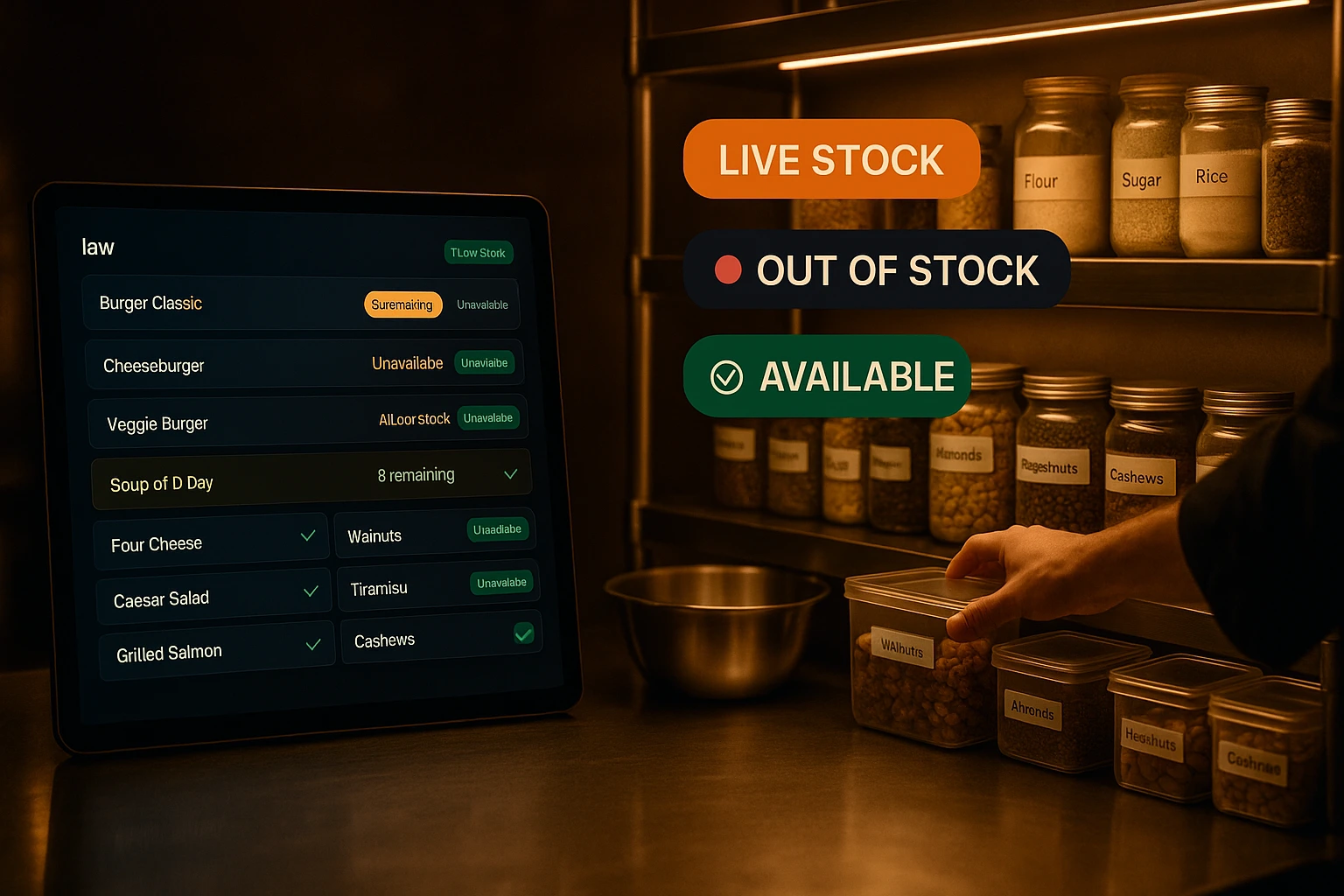
Real-Time Inventory & Availability Management
Stop selling items you've run out of. Mark menu items unavailable in seconds from the kitchen display, sync stock from your POS, or track batch quantities for pre-portioned items — instantly reflected on your live ordering menu.
What is Restaurant Inventory Management?
Restaurant inventory management means knowing, at any given moment, what you can still sell. Ordering.Tools solves this in three layers: a simple on/off availability toggle that kitchen staff can flip in one tap from the Kitchen Display, a batch counter for pre-portioned items like soup of the day or bottled drinks, and real-time POS sync that automatically marks items unavailable when your POS runs out of stock.
All three mechanisms update your live ordering menu instantly — the moment an item is marked unavailable, customers can no longer add it to their cart. No more accepting orders you can't fulfil, no more awkward refunds, no more kitchen frustration.
Why Manage Inventory in Real Time?
Zero Unfulfillable Orders
When you run out of the soup of the day, mark it unavailable in one tap from the kitchen display. Customers can no longer order it — no rejections, no refunds, no disappointment.
Kitchen Controls Availability
The availability panel is built into the Kitchen Display System. Kitchen staff don't need a separate admin account — one tap marks an item unavailable, another tap restores it.
POS Sync — Fully Automatic
Connect your Barsy POS and stock updates flow in automatically. When the POS marks an item as out of stock, the online menu reflects it within seconds — no manual intervention.
Batch Counters for Pre-Portioned Items
Set a starting quantity for items made in advance — soup, pre-sliced cakes, bottled drinks. Each order automatically decrements the counter and marks the item unavailable at zero.
How Inventory Management Works
Mark Items Available or Unavailable
From the Kitchen Display or the admin Inventory page, kitchen staff toggle individual items off with one tap. The item immediately disappears from the ordering menu for customers.
Set Batch Quantities
For pre-portioned items, set a starting stock count. Each order decrements the count automatically — and when it hits zero, the item is marked unavailable without any manual action.
POS Pushes Availability Updates
When connected to Barsy POS, stock changes in the POS system are instantly pushed to Ordering.Tools via webhook. Your online menu always matches what the kitchen actually has.
Auto-Restore on Schedule
When marking an item unavailable, optionally set an auto-restore time — in 2 hours, in 4 hours, or tomorrow at opening. Items come back online automatically without any manual step.
Inventory Features Built for Restaurants
Availability Toggle — One Tap from the KDS
The availability panel is embedded in the Kitchen Display System, so the person who needs it most — the chef — has direct access without navigating away from the order screen.
- Mark any item unavailable in one tap
- Restore all unavailable items with a single 'Restore All' button
- Add an optional note ('sold out for today') per item
- Accessible from the standalone admin Inventory & Availability page for managers
Batch Stock Counter
For items prepared in fixed quantities — soup of the day, pre-sliced desserts, bottled soft drinks — set a starting count and let the system track the rest.
- Atomic stock decrement per order — no overselling under concurrent traffic
- Auto-marks unavailable when stock hits zero
- Low-stock threshold with admin email alert
- Restock in one click directly from the product editor
POS Availability Sync
When your Barsy POS sends an item-unavailable webhook, the corresponding product on your online menu is marked unavailable within seconds — fully automatic.
- Real-time webhook from Barsy POS
- Maps POS item IDs to your menu products via PLU code mapping
- Changes logged with source 'POS Sync' for full audit trail
- Restore manually or let the POS re-enable when stock is replenished
Auto-Restore Scheduling
No need to remember to restore items at the start of the next service. Set an auto-restore time when marking something unavailable and it comes back online automatically.
- Options: in 2 hours, in 4 hours, tomorrow at 9 AM, or manual only
- Processed by a background job every 15 minutes
- All restore events logged with source 'Schedule'
- Can be overridden manually at any time
When Inventory Management Saves the Day
Soup of the Day
Set a batch count of 20 portions. Orders decrement it automatically. When the pot is empty, the soup disappears from the menu — no manual monitoring required.
Daily Specials & Limited Items
For dishes prepared in small quantities, toggle them unavailable from the kitchen the moment the last portion leaves the pass.
Bottled Drinks & Canned Items
Track physical stock of bottled beers, soft drinks, and juices. Each sale decrements the count — and when the fridge is empty, the item goes offline.
POS-Connected Operations
Venues using Barsy POS get fully automatic availability sync. Stock changes in the POS propagate to the online menu without any staff action.
Catering & Events
Pre-set batch quantities for event menus and track how many portions have been sold in real time — no spreadsheets, no guesswork.
Multi-Station Kitchens
Different sections (grill, pastry, bar) can each control availability for their own items from the KDS panel, keeping the menu accurate across all stations.
Stop Taking Orders You Can't Fulfil
Every restaurant has experienced it: a customer orders the last portion of something you sold out of 20 minutes ago. The kitchen can't make it, you refund the order, and the customer is disappointed. Ordering.Tools inventory management eliminates this problem with a real-time availability system built directly into the platform — no third-party integrations, no extra monthly fees.
Three Levels of Inventory Control
Not all inventory problems are the same. A sold-out soup is different from a POS-synced stock count. Ordering.Tools handles all three scenarios: a simple availability toggle for ad-hoc unavailability, a batch counter for pre-portioned items, and automatic POS availability sync for connected operations. Each mechanism updates the live ordering menu instantly.
Kitchen Staff Own Availability — Without Admin Access
The availability panel is built into the Kitchen Display System — the same screen the kitchen is already watching. Kitchen staff mark items unavailable with one tap, without needing an admin account or navigating to a settings page. Managers can also access a standalone Inventory & Availability page for a full-venue overview.
Batch Counters Prevent Overselling Under Load
The batch stock counter uses atomic database operations to prevent two concurrent orders from both claiming the last portion. If two customers check out at the same moment and only one portion remains, exactly one order succeeds. The other receives a clear error and is not charged. This protection runs automatically — no configuration needed.
Never Disappoint a Customer Again
Enable real-time inventory management and keep your menu in perfect sync with what the kitchen can actually deliver.
Related features
Other tools restaurants use alongside this one.
Stop paying 15-30% commission on every delivery order. Define delivery zones on a map, validate addresses at checkout, and set pricing per zone -- so you control the margins, not a third-party platform.
Learn moreManage your own drivers, optimize routes, and track every delivery in real time — directly from Ordering.Tools.
Learn moreReceive orders from Wolt, Glovo, Takeaway, Bolt Food, Foodpanda, and UberEats directly in the Ordering.Tools admin and KDS — same screens, same printers, same notifications as your direct orders.
Learn moreConnect your PBX to Ordering.Tools and operators see the caller's full history the moment the phone rings — placing the order in seconds.
Learn more