
Call Center Integration Setup
Connect your phone system to Ordering.Tools. Configure DIDWW CDR polling, set up phone routing for orders vs reservations, and see how operators handle incoming calls.
Enable Call Center Module
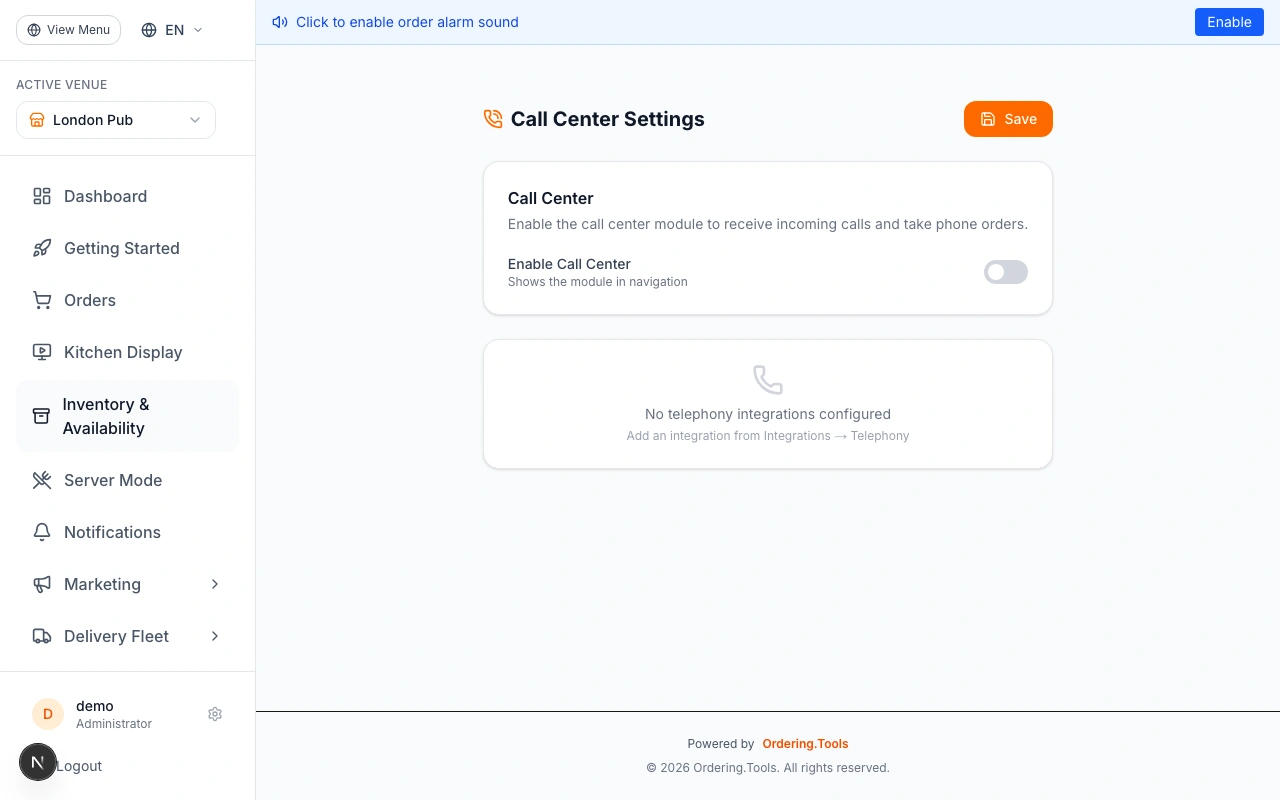
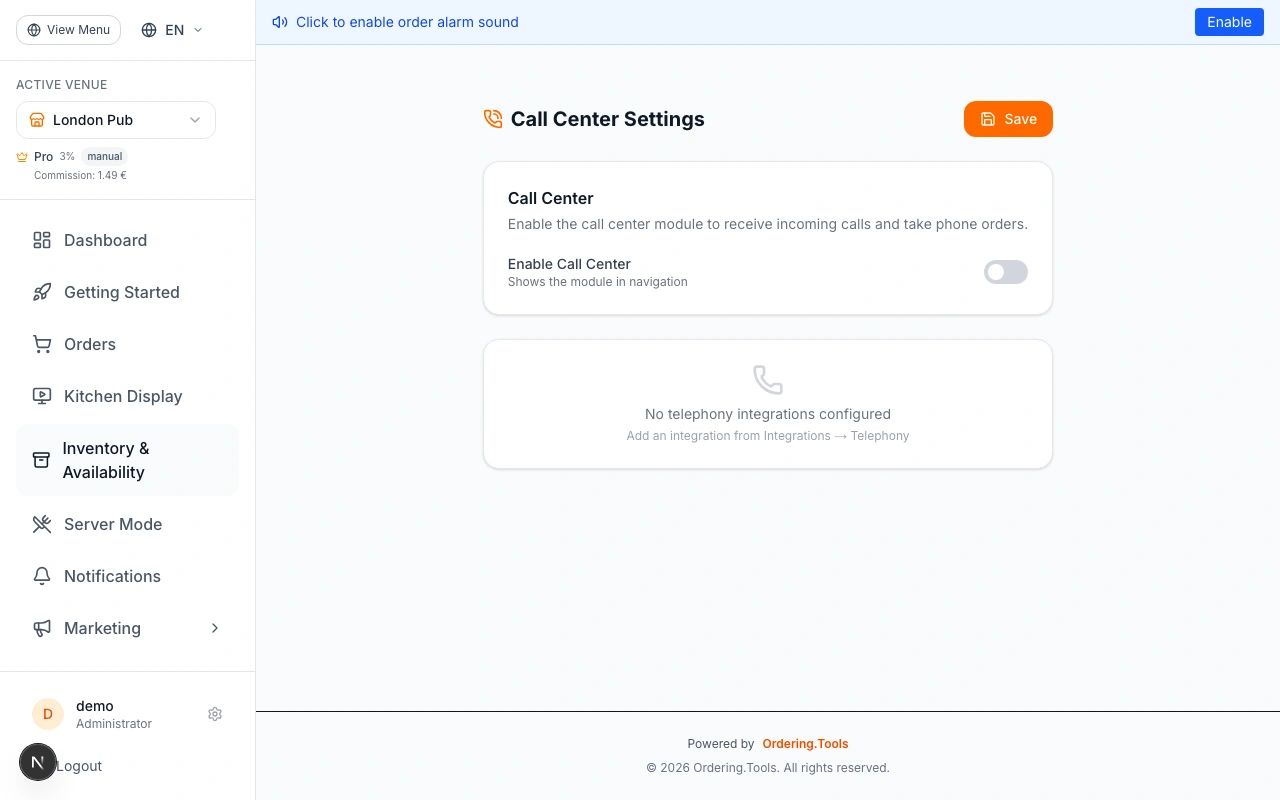
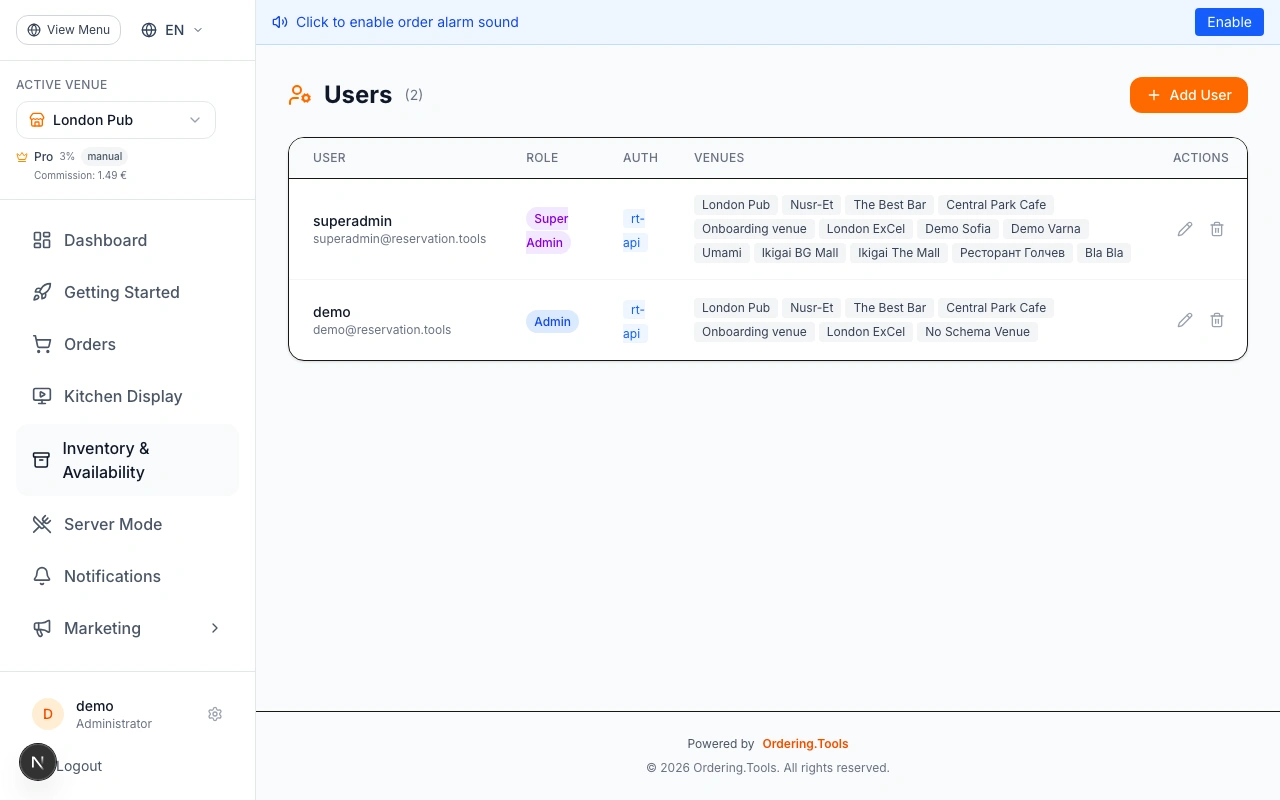
Navigate to Settings → Call Center to enable the module for your venue. Toggle on "Enable Call Center" and save.
Once enabled, a "Call Center" entry appears in the sidebar. Operators with the callcenter.access permission will see it when they log in.
If you want to give specific staff members access, go to Settings → Roles & Permissions and grant them the "Access Call Center" permission.
The Call Center sidebar item is hidden until the feature is enabled. Enable it first, then grant permissions to operators.
Create a DIDWW Integration
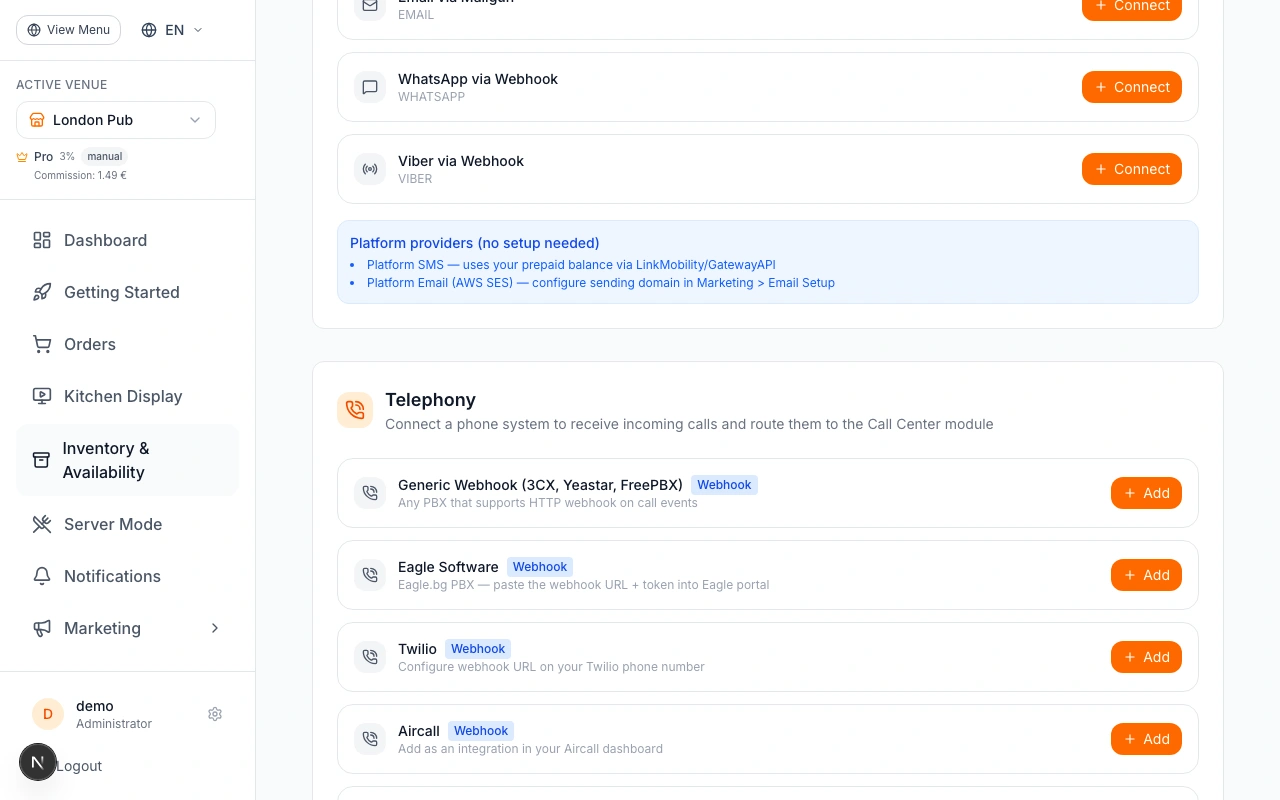
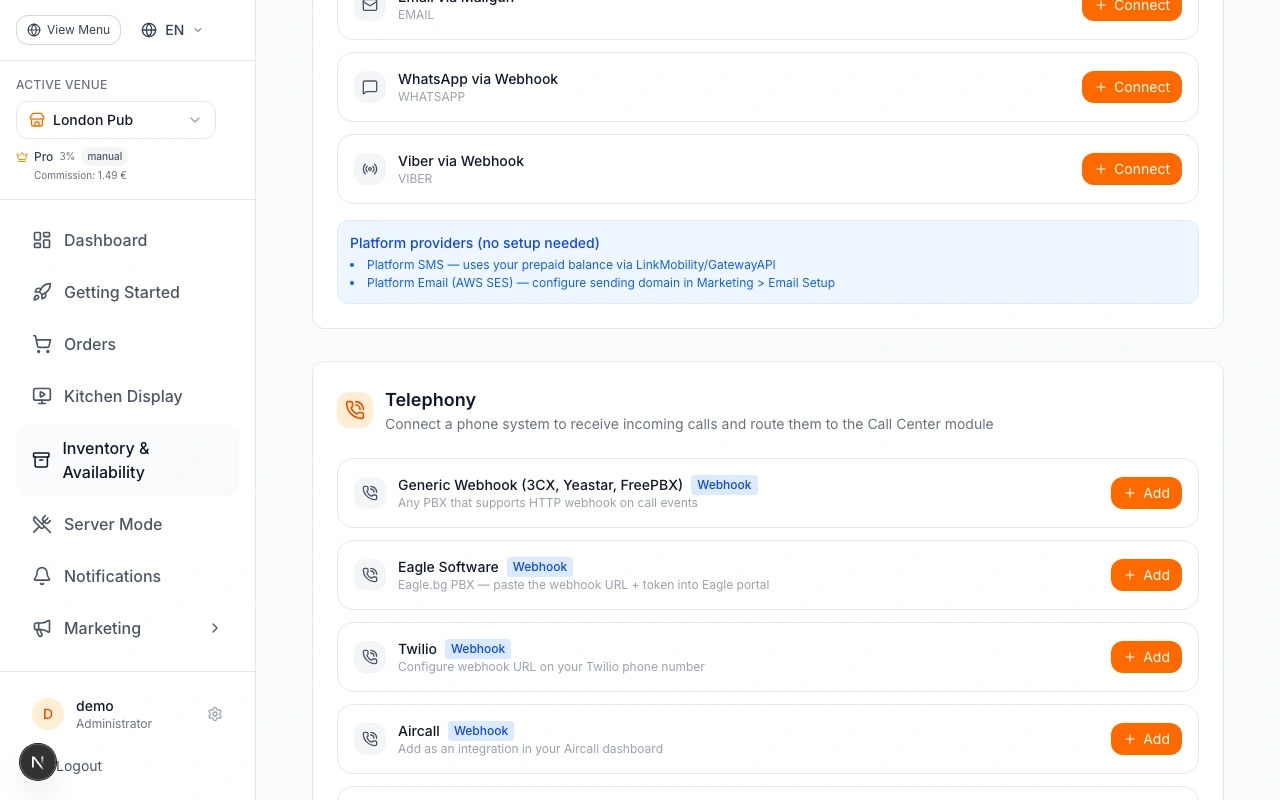
Go to Settings → Integrations and scroll to the Telephony section. Click Add Integration and choose DIDWW (CDR Polling).
You need:
- DIDWW API key (from your DIDWW dashboard under API Credentials)
- Your DID number in E.164 format (e.g. +35924000001)
Save the integration. It will start in inactive state — activate it after configuring phone routing.
DIDWW uses CDR (Call Detail Record) polling rather than webhooks. The system polls DIDWW every 15 seconds to fetch new incoming calls.
Configure Phone Routing
Return to Settings → Call Center. Under your DIDWW integration you will see a Phone Routing table.
For each DID number, add a routing entry:
1. Enter the phone number (must match exactly what DIDWW reports as the called number)
2. Choose the destination: Orders, Reservations, or Both
3. Add an optional label (e.g. "Pizza Hotline", "Reservations Line")
Example:
- +35924000001 → Orders (your ordering line)
- +35924000002 → Reservations (your booking line)
When destination is "Reservations" or "Both", the system automatically forwards the call data to Reservation.Tools so the booking team receives it.
Phone numbers must match the DNIS (called number) reported by DIDWW exactly. If calls are not routing, double-check the number format in your DIDWW CDR exports.
Activate the Integration
Go back to Settings → Integrations, find your DIDWW integration and click Activate. The system will begin polling DIDWW every 15 seconds.
You can verify it is working by:
1. Making a test call to your DID number
2. Opening the Call Center dashboard (/admin/callcenter)
3. The incoming call should appear within 15 seconds as a ringing alert
If no call appears after 30 seconds, check that:
- The integration is active
- The API key is correct
- The DID number in the routing table matches your DIDWW number
After activating, wait for the first poll cycle (up to 15 seconds) before testing. The first call may take up to 30 seconds to appear if it was received just before the poll.
Handle an Incoming Call
When a call arrives, operators in the Call Center dashboard see a pulsing red alert with:
- The caller phone number
- Customer name (if the number is linked to an account or past order)
- Order history summary
The operator clicks Answer to claim the call. If two operators are online, only the first click succeeds — the other sees "Call was answered by [name]".
After answering, the right panel opens an order creator. The operator:
1. Selects PICKUP or DELIVERY
2. Enters a delivery address if needed
3. Browses the product menu and adds items
4. Clicks Place Order
The order is linked to the call log automatically.
The Answer button uses optimistic locking — only the first operator to click it claims the call. This prevents the same call being handled twice.
Other Telephony Providers
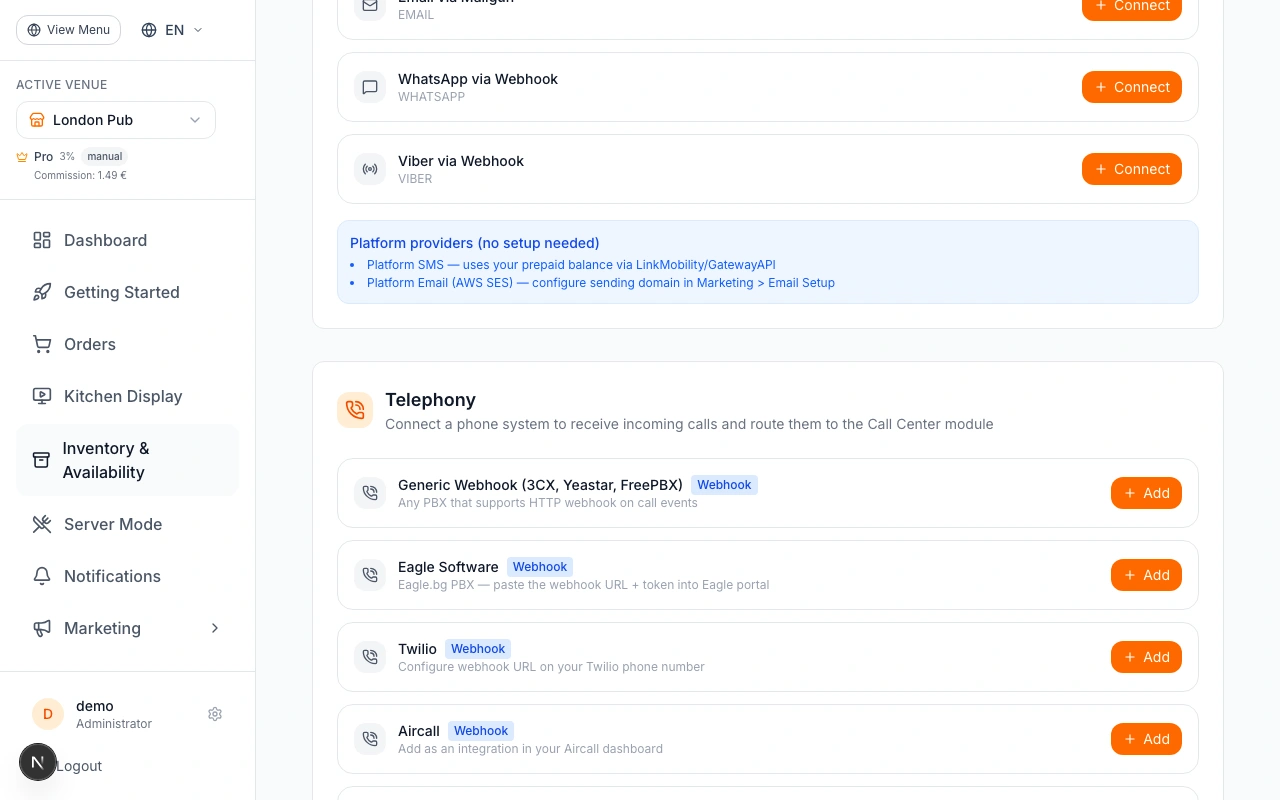
If you are not using DIDWW, you have several other options:
Generic Webhook — For 3CX, Yeastar, FreePBX or any PBX with HTTP webhook support. Copy the webhook URL from Settings → Call Center and paste it into your PBX admin portal. Set a webhook secret for HMAC-SHA256 verification.
Eagle Software — Popular in Bulgaria. Use the webhook URL with the ?token= parameter shown in Settings → Call Center. Configure it as a call notification URL in your Eagle portal.
Twilio — For cloud phone numbers. The webhook URL uses Twilio HMAC-SHA1 verification automatically. Configure it as the voice webhook on your Twilio phone number.
Aircall — Add the webhook URL as an integration in your Aircall dashboard. Uses HMAC-SHA256 with your API secret.
All webhook providers deliver calls in real time — no polling delay.
For the fastest setup with zero hardware, use a Twilio number. You can rent one for ~/month and be receiving calls within 10 minutes.
Ready to Get Started?
Apply what you've learned and set up your restaurant in minutes