
Delivery Zones & Pricing
Set up delivery zones on the map, configure pricing rules per area, and let customers check if you deliver to their address.
Create Price Groups
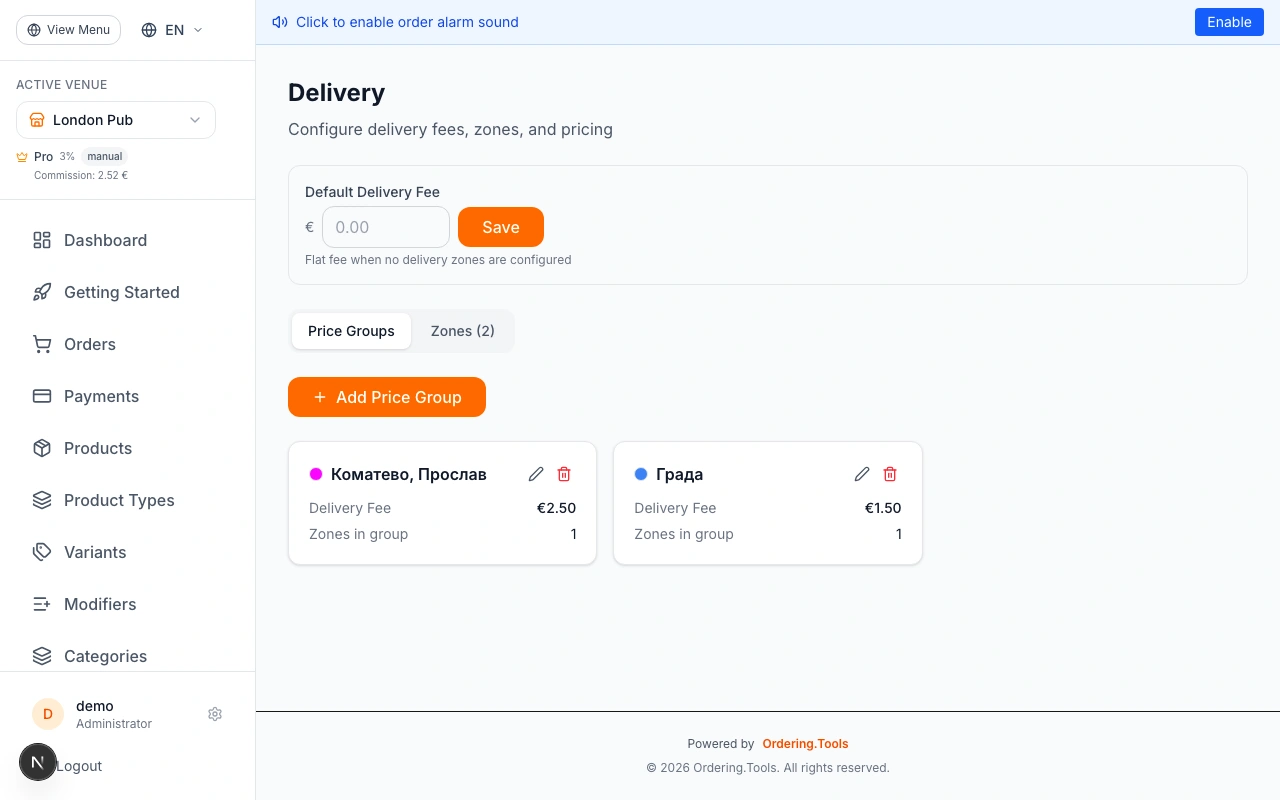
Navigate to "Delivery Zones" in the admin sidebar. Start with the "Price Groups" tab. Price groups define delivery pricing — for example, "City Center" at 4 EUR, "Nearby Villages" at 6 EUR, or "Extended Area" at 20 EUR. Click "Add Price Group" and fill in the name, delivery fee, minimum order value, estimated delivery time, and pick a color for the map.
Each price group can contain multiple zones. When you change a group's fee, it updates for all zones in that group automatically.
Create an "Excluded Area" price group for areas where you don't deliver. Zones in this group will be marked as exclusion zones — customers in those areas will see a "We don't deliver here" message.
Add Delivery Zones
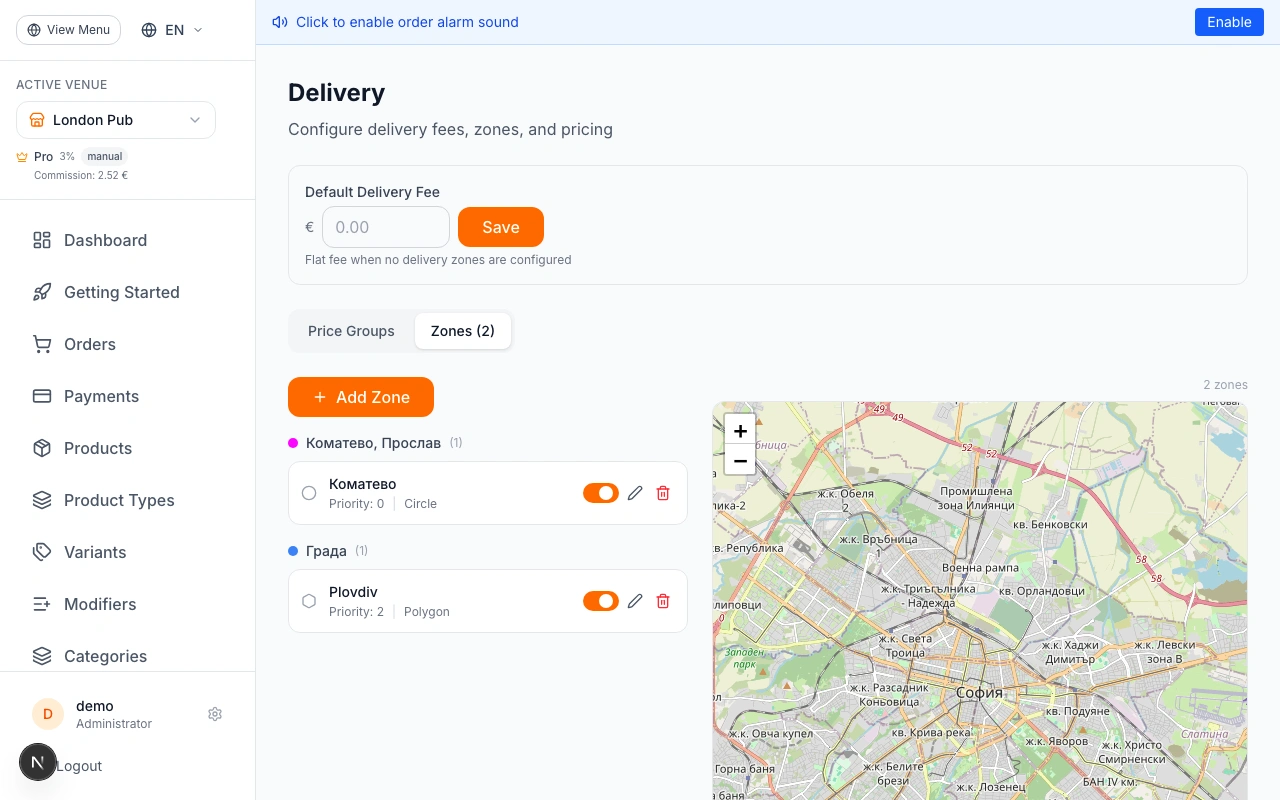
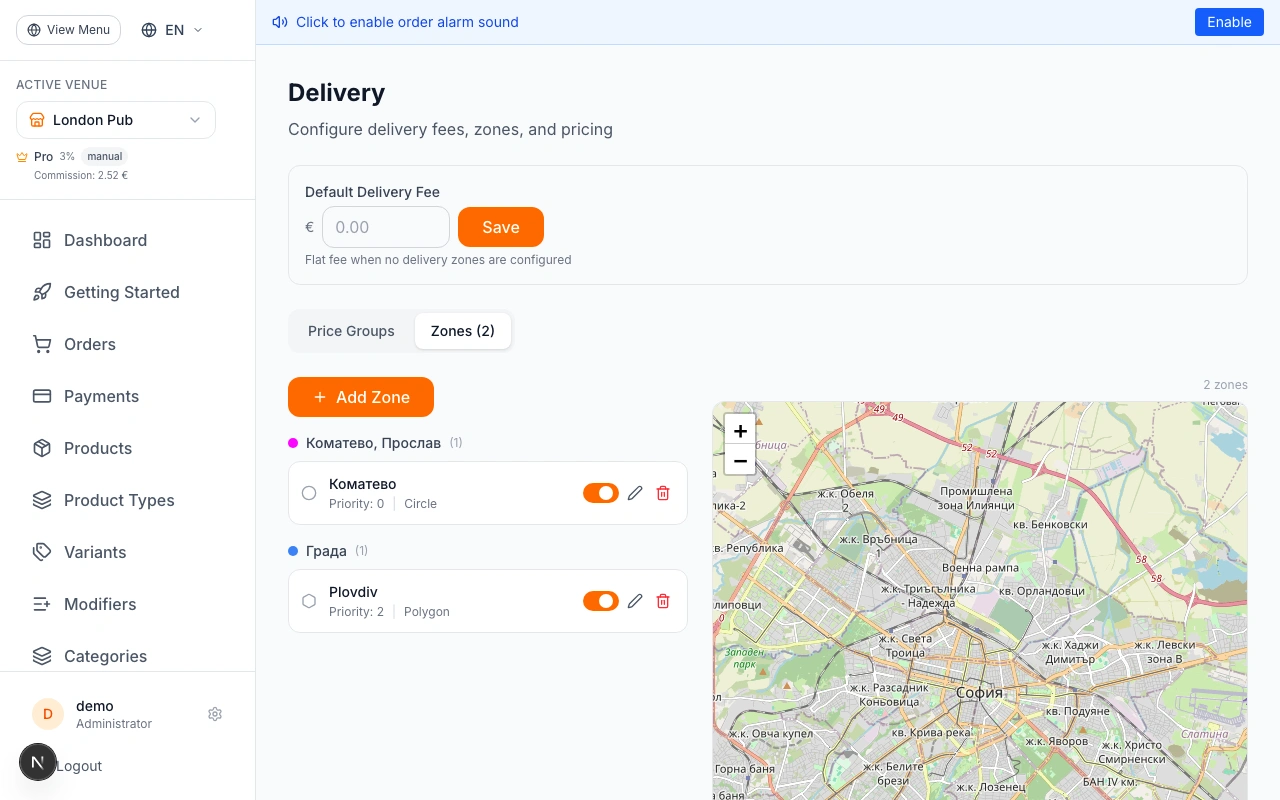
Switch to the "Zones" tab to see the map. You can add zones in two ways:
1. Search by name — Type a city, neighborhood, or village name (e.g., "Plovdiv", "Trakiya quarter") in the search box. The system uses boundary data to automatically draw the zone polygon on the map.
2. Draw manually — Use the drawing tools to create a polygon or circle directly on the map. This is useful for custom delivery areas that don't match administrative boundaries.
For each zone, assign it to a price group, give it a name, and set a priority number. Lower priority numbers are checked first — use this when zones overlap (e.g., a "City Center" zone inside a larger "City" zone).
When zones overlap, the zone with the lowest priority number wins. For example, set "City Center" to priority 1 and "Greater City" to priority 5 — customers in the center get the cheaper rate.
Configure Geocoding
For address autocomplete and delivery validation to work, you need a Google Maps API key. There are two options:
1. Platform key (recommended) — Your platform administrator sets a shared Google API key in the server environment. All venues use this key automatically — no per-venue setup needed.
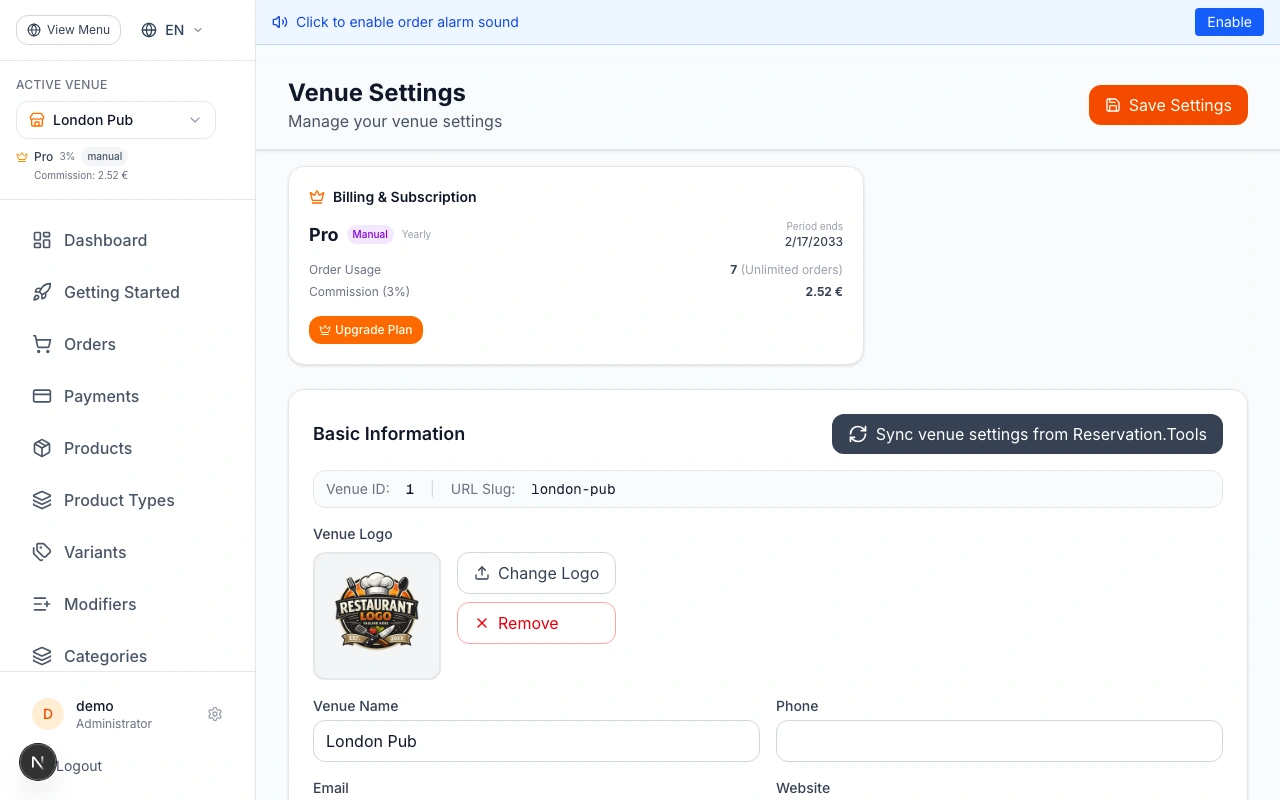
2. Venue key — In Settings, scroll to the geocoding section. Select "Google Maps" as the provider and enter your own API key. This overrides the platform key for your venue only.
To get a Google Maps API key: go to Google Cloud Console, enable the Geocoding API and Places API, then create an API key under Credentials.
The platform key works for most venues. You only need a venue-specific key if you want separate billing or usage tracking for a specific venue.
Set a Default Delivery Fee
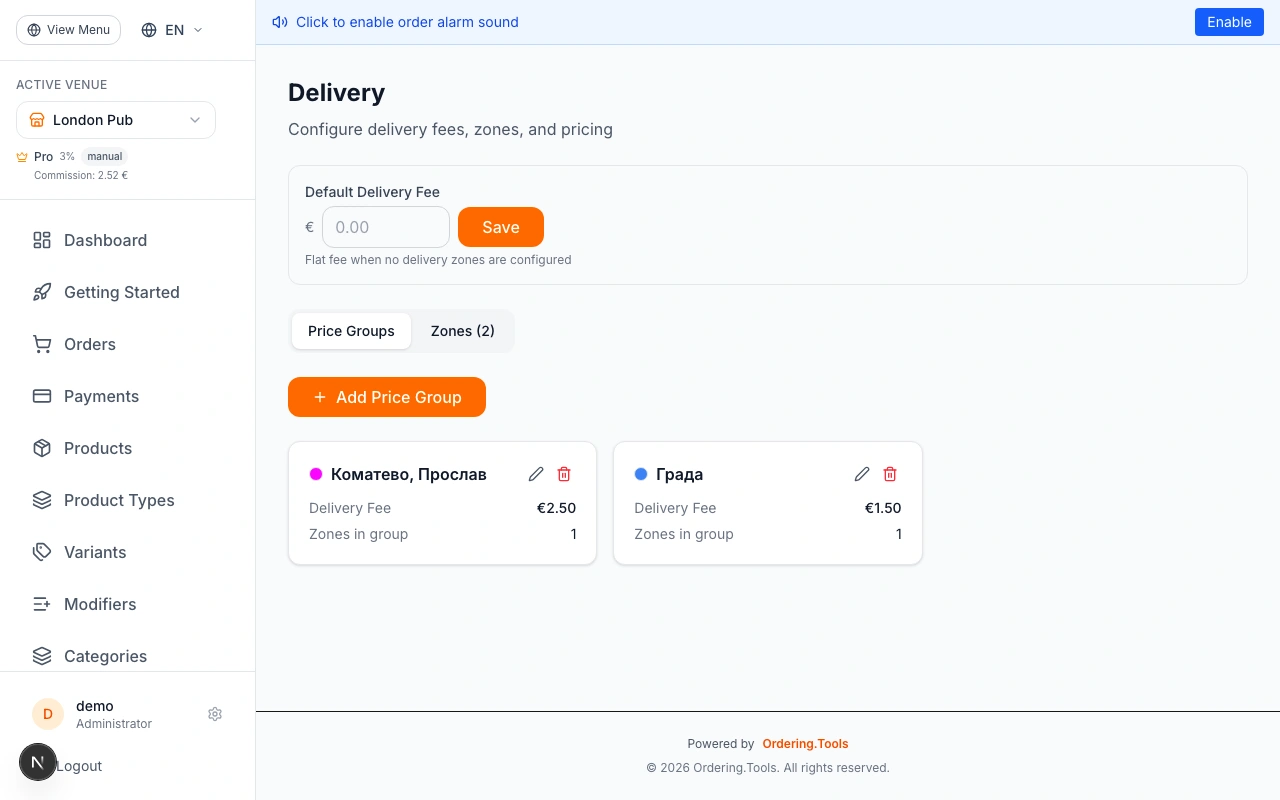
In Settings, find the "Default Delivery Fee" field. This fee is used as a fallback when no delivery zones are configured, or when a customer's address doesn't fall within any zone. Set it to your standard delivery fee.
Once you have delivery zones set up, the zone-based pricing takes priority. The default fee only applies if no zones match.
Test the Delivery Check
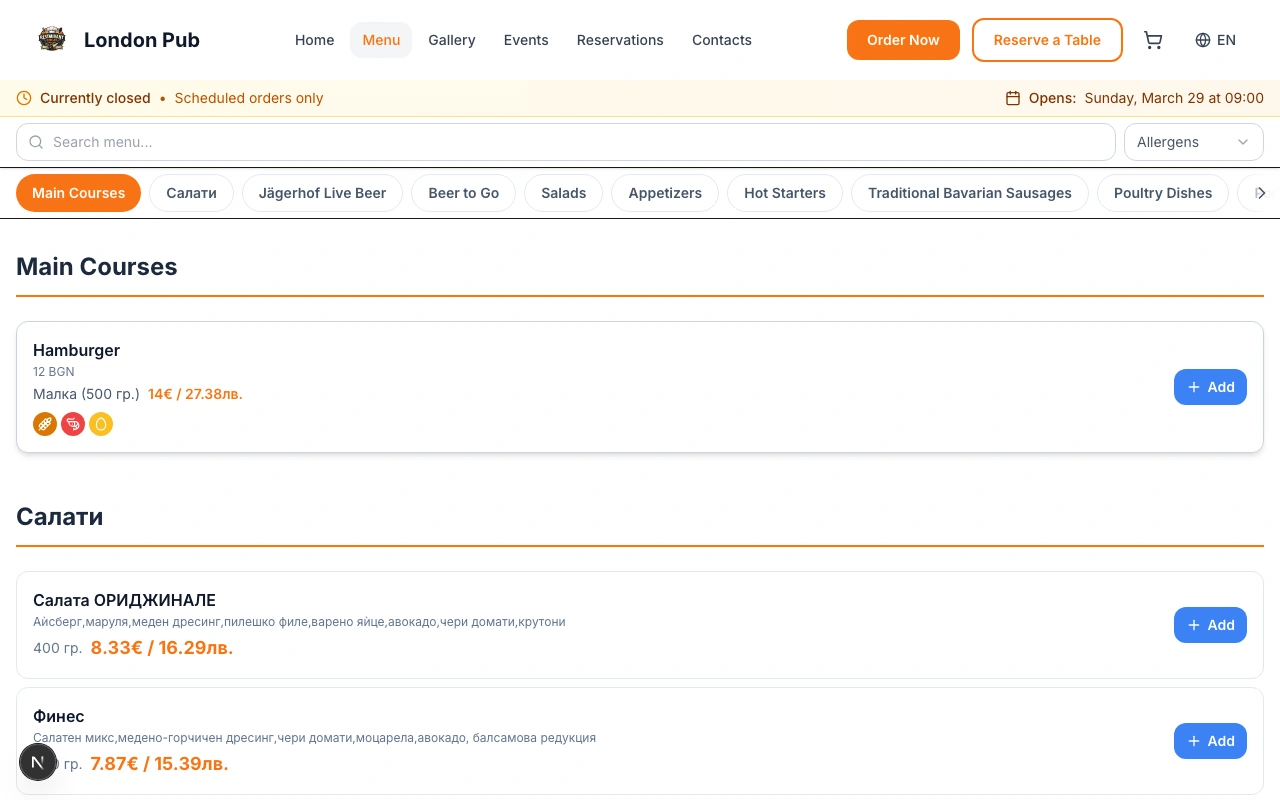
Open your venue's public menu and go to checkout. Select "Delivery" as the order type. Enter an address or use the "Use my location" button. The system will:
1. Geocode the address to coordinates
2. Check which delivery zone contains those coordinates
3. Show the delivery fee, zone name, estimated time, and minimum order value
If the address is outside all zones, customers see a "We don't deliver to this address" message. Try addresses in different zones to verify your pricing is correct.
Logged-in customers can save addresses to their account. Saved addresses show the delivery fee and zone match instantly — no need to re-enter the address each time.
Manage Exclusion Zones
Exclusion zones block delivery to specific areas — even if they fall inside a regular delivery zone. This is useful for areas that are technically nearby but hard to reach (mountains, industrial zones, restricted areas).
To create an exclusion zone: add a new zone, check the "Exclusion zone" checkbox, and draw or search for the area. Exclusion zones are always checked first, regardless of priority. If a customer's address is in an exclusion zone, delivery is refused.
Exclusion zones appear with a red hatched pattern on the map so you can easily distinguish them from regular delivery zones.
Ready to Get Started?
Apply what you've learned and set up your restaurant in minutes