
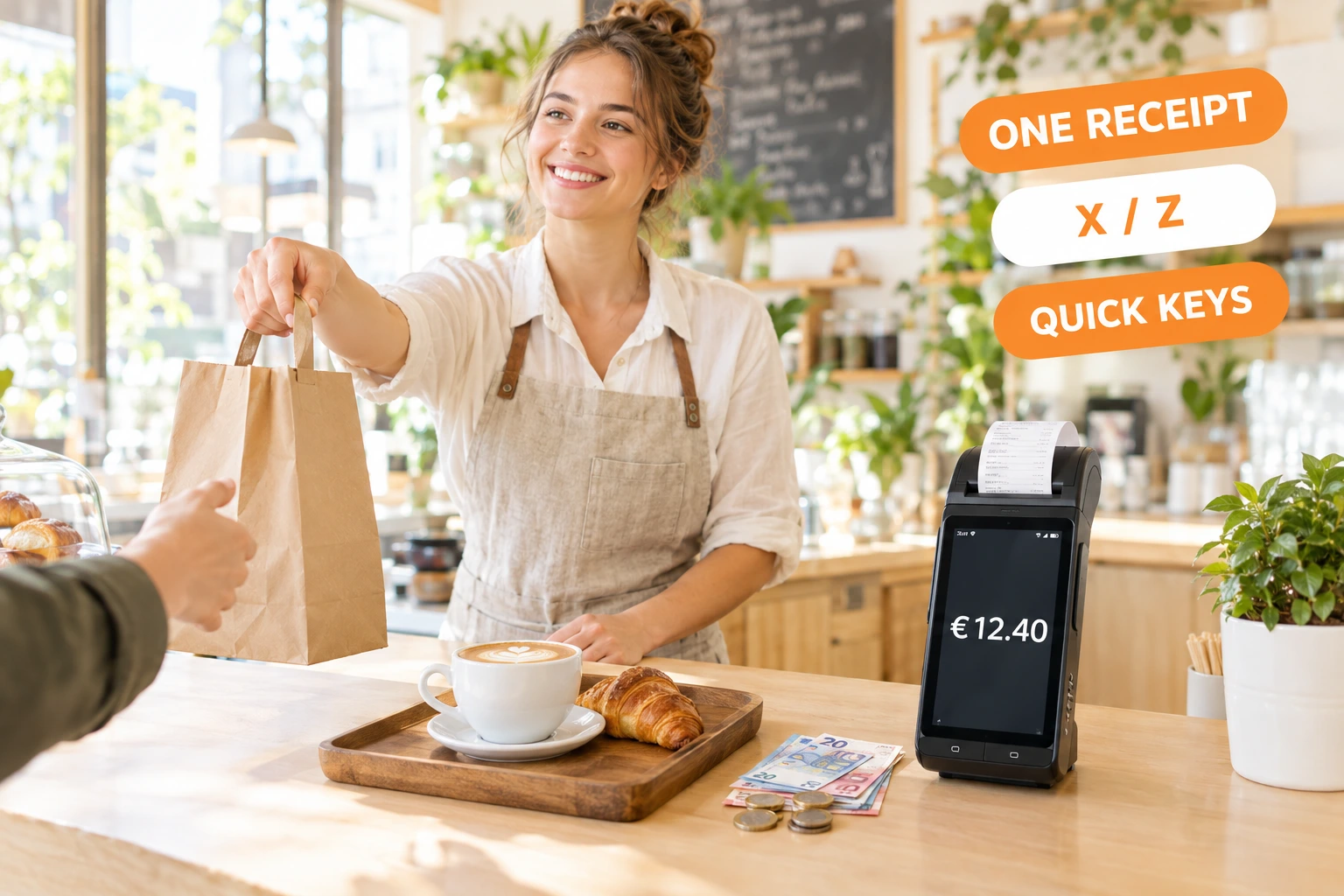
A Counter Till and Table Service That Run on Your Ordering.Tools Menu
Ring up a sale with quick keys, take cash or card and close the day — on the same menu, bills and kitchen as your online orders. Built for the Datecs BC-50, with fiscal receipts and X and Z reports being verified on the device.
What is Counter POS?
Counter POS is a light till for counters, takeaways and delivery-led venues. The cashier taps quick keys — your pinned dishes first, then the menu by category — picks sizes and options in one dialog and presses Pay. The sale is an ordinary bill: priced by the server, sent to the kitchen once it is paid, and counted in cash-up like any other cash payment.
The counter is built for the Datecs BC-50 — an Android terminal and a fiscal module in one box — to print one fiscal receipt for the whole bill and run X and Z reports, cash in and cash out. That fiscal part is being verified on the device. For table service there is more: staff switch who is working with a personal PIN, waiters send courses and seats from the handheld, a bill splits by moving items, and each kitchen station can get its own ticket.
Why run the counter on Ordering.Tools
One System, Not Two
The counter sells from the menu you already keep in Ordering.Tools. Prices, options, the kitchen and the reports are shared, so there is no second catalogue to keep in step.
Know Who Rang What
On a shared device each person signs in by name and PIN. Every bill action is recorded under the person who did it, while the device keeps its own permissions.
Fewer Kitchen Mix-ups
Later courses wait until the waiter fires them, and each station can get a ticket with only its own lines — the bar sees drinks, the grill sees the grill.
Money That Adds Up
A fiscal receipt is refused unless its lines, discount and payments match the paid bill to the cent. One receipt per sale, never two.
How It Works
Turn It On
The counter is off until your venue's admin turns it on from the Counter screen. Pin your best sellers as quick keys and set the VAT group per product type.
Ring Up the Sale
Tap the dishes, choose options, press Pay. Take cash with the change shown, or a card on your own card terminal. A mixed payment is simply several payments.
Print the Receipt
When the bill is paid the order goes to the kitchen and the ordinary slip prints. One fiscal receipt for the whole bill on a Datecs BC-50 is built and being verified on the device.
Close the Day
From the Reports tab see the day's figures beside your receipts. X and Z reports and cash in and out on the BC-50 are built into the same tab and being verified on the device.
What the Counter Does
A Screen Built for the Queue
Quick keys, a basket and a tender dialog that shows total, paid and still owed — taken from the server's own bill, not the screen's arithmetic.
- Pinned quick keys first, then the menu by category
- Sizes and options in one dialog
- Banknote shortcuts and the change due
- A card can never be charged more than is owed
Built for Fiscal Receipts on the BC-50
Designed for one fiscal receipt for all the rounds of a bill, with a storno for an issued one, and for X and Z reports and cash in and out printed by the device first, then recorded with the day. Being verified on the device.
- One document per sale — the order can't be receipted twice
- A VAT group per product type
- Designed to read the device's day figures before every X or Z
- The day's last Z shown in Cash-up
Table Service on the Handheld
With course and seat tracking on, the waiter tags each new line with a course and a seat. Later courses are held until the waiter fires them from the order card.
- Courses 1–5 and seats 1–20 per line
- "Fire course" straight from the handheld
- Split a bill by moving chosen items to a new bill
- "Who is working?" — switch person by PIN on a shared device
Printers, Displays and the Back Office
Send each station its own ticket to a network printer from an Android device of the venue and show the guest the basket on a second screen. The counter is also prepared for PC fiscal printers through ErpNet.FP.
- Kitchen tickets by menu category
- Prepared for ErpNet.FP fiscal printers
- A customer display with the total and the change
- VAT by group per day, compared with the Z report
Also included
Back-office reports that come with the counter.
VAT by group and day
Gross sales per VAT group from your fiscal receipts, day by day, beside the totals of that day's Z report. A day with no Z says so instead of showing zero.
Shrinkage report
Stock write-offs as waste, theft, spillage or expiry, by reason, by ingredient and by weekday — at the cost they had when written off.
Count variance
Each reconciled stock count against what was expected. Two counts in a row more than 10% off are flagged as high drift.
Who It's For
Takeaway Counters
Ring up the queue with quick keys, take cash or card, and send each paid order straight to the kitchen.
Coffee Shops and Bakeries
Pin the items you sell all day. A few taps, paid, next guest.
Delivery-Led Kitchens
Sell over the counter on the same menu and kitchen flow as your online and delivery orders.
Restaurants With Table Service
Waiters send courses and seats from the handheld and fire the mains when the table is ready.
Bars With a Shared Till
Several people share one device. Each signs in with a PIN, so every action carries the right name.
Tables That Pay Separately
Move the items one guest had to a new bill instead of dividing the total evenly.
A Restaurant POS Built on Your Online Ordering
Many restaurants run one system for online orders and another at the counter. Two menus drift apart and two sets of reports disagree. Counter POS sells from the same menu and bills as Ordering.Tools, so the counter, the kitchen and the reports stay in step.
Built for the Datecs BC-50
The BC-50 combines an Android terminal and a fiscal module. The counter builds every receipt on the server and checks it against the paid bill, so one sale means one receipt. Printing fiscal receipts, X and Z reports and cash in and out on the device is being verified on the BC-50.
Table Service Without a Second System
Courses and seats, firing from the handheld, splitting a bill by items and a PIN for each person on a shared device are options inside the counter. Each one stays off until your admin switches it on.
Counter Sales Are Not Commissioned
Ordering.Tools does not commission a sale rung up at the counter. Online, delivery and QR orders keep the rates of your plan, exactly as before.
Questions about Counter POS
Which device do I need?
Fiscal receipts and X and Z reports are built for a fiscalised Datecs BC-50 and are being verified on the device. The counter is also prepared for PC fiscal printers through ErpNet.FP. Without a fiscal device the counter sells and prints an ordinary slip.
Can guests pay by card at the counter?
Yes, on your own card terminal. The counter records the card payment; it does not drive the terminal itself — a direct pinpad link is not built yet.
Does the counter work offline?
No. It needs an internet connection, because every sale is priced and recorded on the server. Results the device printed but could not report yet are kept on the device and sent again.
Can I type a price by hand?
No. Every line comes from your menu and is priced on the server. Weight-priced products and combo options are sold from the order screen.
What do I need for kitchen tickets by category?
Network printers on the venue's own local network, and one Android device of the venue set to send the routed tickets. Ask us to check your printers with you before you rely on it in service.
Can I print X and Z reports through ErpNet.FP?
Not from the counter. The ErpNet.FP connection is prepared for fiscal receipts and storno only; X and Z reports are printed on the printer itself. On a BC-50, X and Z are built into the counter's Reports tab and being verified on the device.
Put Your Counter on Your Menu
Counter POS is off until your venue's admin turns it on from the Counter screen. Planning to take it live on a BC-50? Talk to us first and we will go through the device setup with you.
Related features
Other tools restaurants use alongside this one.
The BC-50 at your pass prints the kitchen ticket and is built to print, when you choose, the fiscal receipt for the same order — being verified on the device. One receipt per order, built from what the guest actually paid — nobody re-types the order at the till.
Learn moreCount the cash at the end of every shift in the three places a venue holds it. Ordering.Tools works out what should be there, the person counts without seeing it, a second person signs, and the day closes only when every cent is accounted for.
Learn moreEvery online order prints on your kitchen thermal printer the moment it arrives. Auto-print runs in the background. No tapping screens, no refreshing tabs. Paper does not crash.
Learn moreCard, Apple Pay and Google Pay inside your ordering checkout, paid into your own myPOS account. An order goes to the kitchen only after myPOS confirms the money.
Learn more