
SumUp Online Card Payments for Your Restaurant
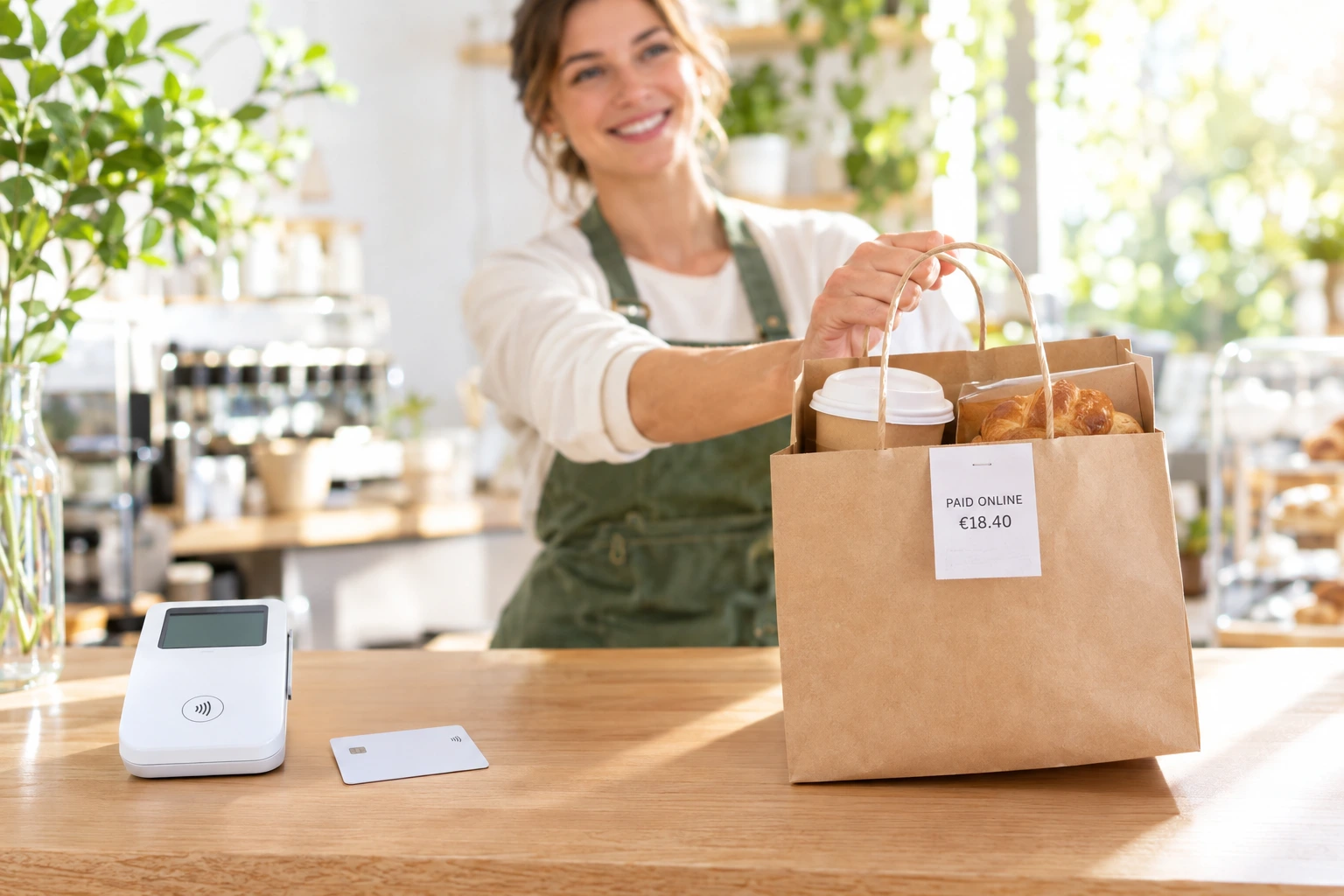
Guests pay for website and QR orders on SumUp's secure payment page, and the money goes into your own SumUp account. Every payment is checked with SumUp before the kitchen starts.
What the SumUp integration does
Many restaurants already take cards at the counter with a SumUp reader. Ordering.Tools gives you your own ordering website and QR menu. The integration connects the two: a guest who pays by card goes to SumUp's payment page, pays there with 3-D Secure, and comes back to their order.
You use your own SumUp merchant account and an API key from it. Ordering.Tools never takes the browser's word for a payment: it asks SumUp directly and checks the amount, currency and order reference before an order counts as paid. Only then does it go to the kitchen.
What changes for your restaurant
Your SumUp account, one place for the money
Online payments go into the same SumUp account as your card-reader sales. No new provider to sign up with.
One key to connect
Paste an API key from your SumUp dashboard. The merchant code is filled in for you, and the notification address travels with every payment, so there is nothing to set up on SumUp's side.
Checked with SumUp, every time
A payment counts only after SumUp reports it paid and the amount, currency and reference match the order. A fake or lost notification cannot turn an unpaid order into a paid one.
A declined card is not a lost order
If a card is declined, the guest tries another one on the same SumUp page. The order waits, and nothing has to be typed in again.
How to connect SumUp
Create an API key
In your SumUp dashboard, open Settings → For Developers → Toolkit → API Keys and create a key. SumUp shows it only once, so copy it straight away.
Connect in the admin
In Admin → Integrations → Payments → SumUp, paste the key and click Connect SumUp. The connection test runs straight away and shows the merchant account it found.
Try it on a test account
SumUp gives you free test accounts with test cards. The admin shows whether a key belongs to a test or a live account. SumUp itself tells us, and a test account is refused on the live site.
Go live
Paste the key from your live account, activate the integration and make one real payment. Check it in your SumUp dashboard, then refund it from the admin.
What you get
SumUp's hosted payment page
Guests pay on SumUp's own page. Card details are entered there, never on your website.
- Card payments with 3-D Secure
- Apple Pay and Google Pay once SumUp turns them on for your account
- The checkout mentions the wallets only when your account has them
- The tip is paid together with the order
Confirmation straight from SumUp
The guest's return and SumUp's notification are only signals. The answer always comes from asking SumUp.
- Reference, amount and currency matched before an order counts as paid
- Each payment settled exactly once
- Test and live accounts told apart by SumUp itself
- A mismatch is refused and logged, never quietly accepted
Recovery for lost returns
Sometimes a guest pays and closes the browser on SumUp's page. Every minute, the platform asks SumUp about payments that are not yet settled.
- Paid orders reach the kitchen even without the return
- A payment page left open is closed after 30 minutes
- An unpaid session ends with SumUp's own answer, never a guess
- No manual checking in SumUp's dashboard
Refunds from the admin
Give money back without opening SumUp's dashboard.
- Full or partial refunds
- Several partial refunds, up to the amount paid
- The payment shows as refunded in the admin
- The money goes back to the card the guest paid with
Where it fits
You already have a SumUp reader
You take cards at the counter with SumUp. Take online orders into the same account instead of opening another one.
A Friday delivery rush
Delivery orders are paid before the kitchen sees them. The driver has nothing to collect at the door.
Ordering from the table
Guests scan the QR code, order and pay by card without waiting for the bill.
Pickup orders
Guests pay ahead and simply collect their order at the counter.
A small café or bar
One provider for the counter and the website: one account, one dashboard, one payout to follow.
A group with branches
Branches can use the main restaurant's SumUp account if you turn that on, or connect their own.
SumUp online payments for restaurants
SumUp is best known for its card readers, and it also offers online payments through a hosted checkout page. Ordering.Tools connects that page to your ordering website and QR menus, so a restaurant that already uses SumUp can take card payments for online orders through the same account.
Why SumUp is asked, not believed
Card payments fail in quiet ways: the browser closes, a page times out, a notification gets lost. Ordering.Tools does not mark an order paid because a page said so. It asks SumUp for the status of the payment and compares the amount, currency and order reference with its own record. Only a match counts.
Online payments, not the Virtual Terminal
SumUp's Virtual Terminal is for staff who type a card in by hand, for example during a phone call. Online orders work differently: the guest pays on SumUp's checkout page themselves. That is what the integration uses, so the guest never has to read their card number out to anyone.
Apple Pay and Google Pay
SumUp turns Apple Pay and Google Pay on per account: on request to SumUp's support, or automatically for sole traders after their first online payment. The connection test reads which methods your account has, and the checkout mentions the wallets only when they are really there.
SumUp integration — questions
Does Ordering.Tools work with SumUp?
Yes. Ordering.Tools connects to SumUp's online payments. Guests pay for website and QR menu orders on SumUp's payment page, and the order reaches your kitchen once SumUp confirms the payment.
What do I need from SumUp?
A SumUp merchant account and an API key from it. You create the key in the SumUp dashboard under Settings → For Developers → Toolkit → API Keys, and paste it in Admin → Integrations → Payments → SumUp.
Is it the same account as my SumUp card reader?
Yes. You connect your SumUp merchant account, so online payments land in it next to the payments you take with the reader.
What if the guest pays but never returns to the site?
The order is still completed. Every minute, the platform asks SumUp about payments that are not yet settled. When SumUp reports a matching paid payment, the order goes to the kitchen like any other paid order.
Can I refund a SumUp payment from Ordering.Tools?
Yes. From the payments screen in the admin you can refund the whole amount or part of it. Several partial refunds are allowed, up to the amount that was paid.
Can I test before going live?
Yes. SumUp offers free test accounts with test cards. Connect a test account's key first. The admin marks it as a test account, and you switch to your live key when you are ready.
Take cards with SumUp? Take online orders through it.
Your own ordering website and QR menus, with card payments into your SumUp account — and every payment checked with SumUp.
Related features
Other tools restaurants use alongside this one.
Stripe, myPOS, BORICA, Viva.com, DSK Bank, SumUp, Barsy POS, and cash. When one method fails, customers switch to another -- without losing their order.
Learn moreGuests pay by card inside your checkout. The money lands in your own Stripe account, and the kitchen sees the order only once Stripe confirms the payment.
Learn moreCard, Apple Pay and Google Pay inside your ordering checkout, paid into your own myPOS account. An order goes to the kitchen only after myPOS confirms the money.
Learn moreTake card payments online through the virtual POS terminal from your bank. We prepare the key and the certificate request, the money goes to your bank account, and the kitchen sees only paid orders.
Learn moreGuests pay for website and QR orders on Viva.com's checkout page — card, Apple Pay, Google Pay and the methods you have switched on. The money goes to your own Viva account, and the kitchen gets the order once it is paid.
Learn moreTake card, Apple Pay and Google Pay payments for website and QR orders on DSK Bank's secure payment page, straight into your own DSK merchant account. Every payment is checked with the bank before the kitchen starts.
Learn more