
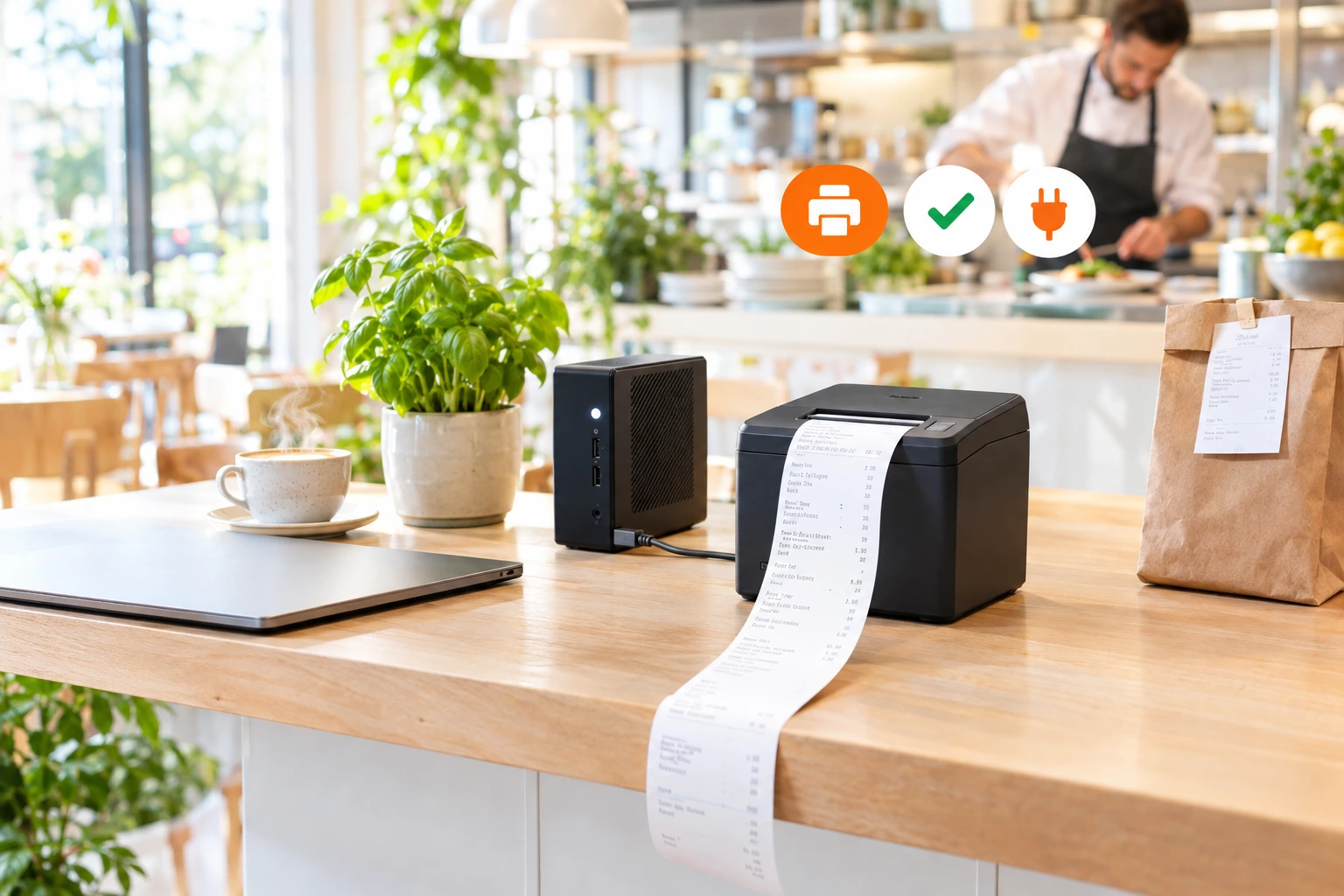
Orders Print Even With the Browser Closed
A small Windows app that keeps your print station running. It starts with the computer, sits next to the clock and prints every new order on your receipt printer. No open tab, no extra print software.
Windows 10 and 11, 64-bit. Included with your Ordering.Tools account.
What the Windows App Does
Printing from a browser has two weak spots. Someone has to keep the admin open, and every print either asks for a click or needs a separate print program. Close the tab by mistake on a Friday night and the kitchen stops getting tickets.
Ordering.Tools for Windows removes both. It opens your admin in its own window, keeps it running in the background and starts when Windows starts. Close the window and the app moves next to the clock. Orders keep printing. Receipts go straight to the printer, over USB or the network, with no dialog and nothing else to install.
What Changes at the Pass
Nobody Watches a Browser Tab
The app starts with Windows and runs in the background. Closing the window does not stop printing. Only "Quit" next to the clock does.
Silent Printing, No Extra Software
Receipts go straight to the printer. No print dialog, no confirmation and no separate print program to install and keep running.
Works With the Printer You Have
Any ESC/POS receipt printer: Epson and the common 58 and 80 mm thermal models. USB printers through Windows, network printers by IP address. The Windows driver it was installed with does not matter.
You See When Something Is Wrong
The icon next to the clock shows the last print or the last error. If the station is signed out, the app opens and says so. A ticket that could not be printed waits in a queue and is offered again.
Set Up in Four Steps
Download and Install
Download the installer from this page and run it on the computer next to the printer. The first time, Windows may ask you to confirm: click "More info", then "Run anyway". Updates install by themselves after that.
Sign In Once
The app opens your Ordering.Tools admin. Sign in with the account for this station. It stays signed in as long as the computer is in use.
Pick the Printer
Go to Operations → Service Settings → Printing. Choose a printer from the Windows list or enter the IP address of a network printer. Print a test page. If Cyrillic or Greek letters come out wrong, change the code page and test again.
Turn On Auto-Print and Close the Window
Switch on auto-print and choose which orders this station prints. Close the window. The app keeps running next to the clock and prints every new order.
How It Works
Prints in the Background
Your admin runs inside the app even when you cannot see it. Every new order prints the moment it arrives, the same way it does on our Android terminals.
- Starts automatically with Windows
- Closing the window hides it. Printing continues
- Keeps the computer from going to sleep while it runs
- Reconnects after sleep, a network drop or a crash, and prints the recent orders it missed
Talks to the Printer Directly
Receipts go out as printer commands (ESC/POS): sharp text and a clean paper cut, whatever Windows driver the printer has.
- USB printers from the Windows printer list
- Network printers by IP address, no driver needed
- A "Through the Windows driver" mode for printers that do not speak ESC/POS
- A test page and a code page choice for Cyrillic and Greek
Your Station, Your Settings
Everything is set in the admin, on the computer that prints. The icon next to the clock takes you there in two clicks.
- Choose the order types and sections this station prints
- Print on the Windows default printer or on one you name
- Paper width 80 or 58 mm
- "Printing settings" next to the clock opens the screen directly
Keeps Itself Up to Date
New versions download in the background and install at night, between 3 and 5 am, never right after a print. Most improvements need no update at all, because what to print comes from your admin.
- No manual updates
- Never restarts in the middle of service
- Comes back hidden after an update and keeps printing
- Menu in English, Bulgarian, Greek and Turkish
Where It Pays Off
Kitchen Print Station
A small PC next to the pass prints every ticket. Nobody has to remember to open anything in the morning.
Dispatcher's Desk
The dispatcher uses the same computer for calls and maps. Browsers get closed and reopened all day. Delivery slips keep printing.
Printer Across the Room
The printer is on the network, not next to the computer. Enter its IP address and the app prints to it directly, with no driver to install.
One Less Program to Maintain
Printing through a separate print bridge today? The app replaces it. Nothing extra to install, update or approve on every print.
Restart in the Middle of Service
Windows restarted after an update. The app starts with it, still signed in, and prints the recent orders it missed while it was off.
Several Stations, One Venue
Install the app on each computer that prints. Every station keeps its own printer and its own filter: the kitchen gets dine-in, the dispatcher gets delivery.
Restaurant Order Printing Software for Windows
Most online ordering systems print from the browser. That works until the tab is closed, the computer restarts or the print dialog waits for a click nobody makes. Ordering.Tools for Windows turns any Windows 10 or 11 computer into a dedicated print station for your online orders.
Print Without an Open Browser
The app runs your admin in the background and starts with Windows. Auto-print keeps working while the window is closed, after the computer wakes from sleep and after a restart. Recent orders that arrived while it was off are printed when it comes back.
Any ESC/POS Receipt Printer, USB or Network
The app sends printer commands directly, the same way a till does. It does not depend on the Windows driver, so a printer installed as "Generic / Text Only" works as well as one with the manufacturer's driver. Network printers are reached by IP address on port 9100.
What You Need
A computer with Windows 10 or 11 (64-bit), a receipt printer and an Ordering.Tools account. Set Windows to sign in automatically so the app starts again after a power cut. On a Mac or Linux computer, printing works from the browser.
Questions About the Windows App
Does the browser need to stay open?
No. The app runs your admin itself, in the background. You can close its window and every browser. Printing stops only when you choose "Quit" next to the clock.
Which printers work?
Any ESC/POS receipt printer, including Epson TM models and the common 58 and 80 mm thermal printers, over USB or the network. For a printer that does not speak ESC/POS, switch the app to "Through the Windows driver".
Do I still need QZ Tray?
No. On a computer with the Windows app, QZ Tray is not used. QZ Tray is still supported for silent printing from a browser, for example on a Mac.
Why does Windows ask me to confirm the installation?
Windows shows a SmartScreen notice for programs it has not seen often. Click "More info", then "Run anyway". You confirm it once. Updates install without asking.
Which Windows versions are supported?
Windows 10 and Windows 11, 64-bit. Windows 7 and 8 are not supported.
What happens after a power cut?
If Windows signs in automatically, the app starts with it and prints the recent orders it missed. Turn on automatic sign-in once, in the Windows account settings.
Download Ordering.Tools for Windows
Install it on the computer next to your printer and stop worrying about the browser tab.
Prefer to see it step by step? There is a full tutorial for this feature.
Related features
Other tools restaurants use alongside this one.
Every online order prints on your kitchen thermal printer the moment it arrives. Auto-print runs in the background. No tapping screens, no refreshing tabs. Paper does not crash.
Learn moreThe BC-50 at your pass prints the kitchen ticket and is built to print, when you choose, the fiscal receipt for the same order — being verified on the device. One receipt per order, built from what the guest actually paid — nobody re-types the order at the till.
Learn moreReplace paper tickets with a real-time digital kitchen display. Set up stations for grill, cold kitchen, bar -- each screen shows only its own orders. Track prep status and get orders out faster.
Learn moreOrders from the Wolt app arrive in Ordering.Tools next to your own orders — and from there on your POS, printer and kitchen screen. Status goes back to Wolt, and your menu, sold-out dishes and opening hours go to Wolt from one place.
Learn more