
Quick Start
Create your account, set up your first venue, and see your digital menu live in minutes.
Create Your Account
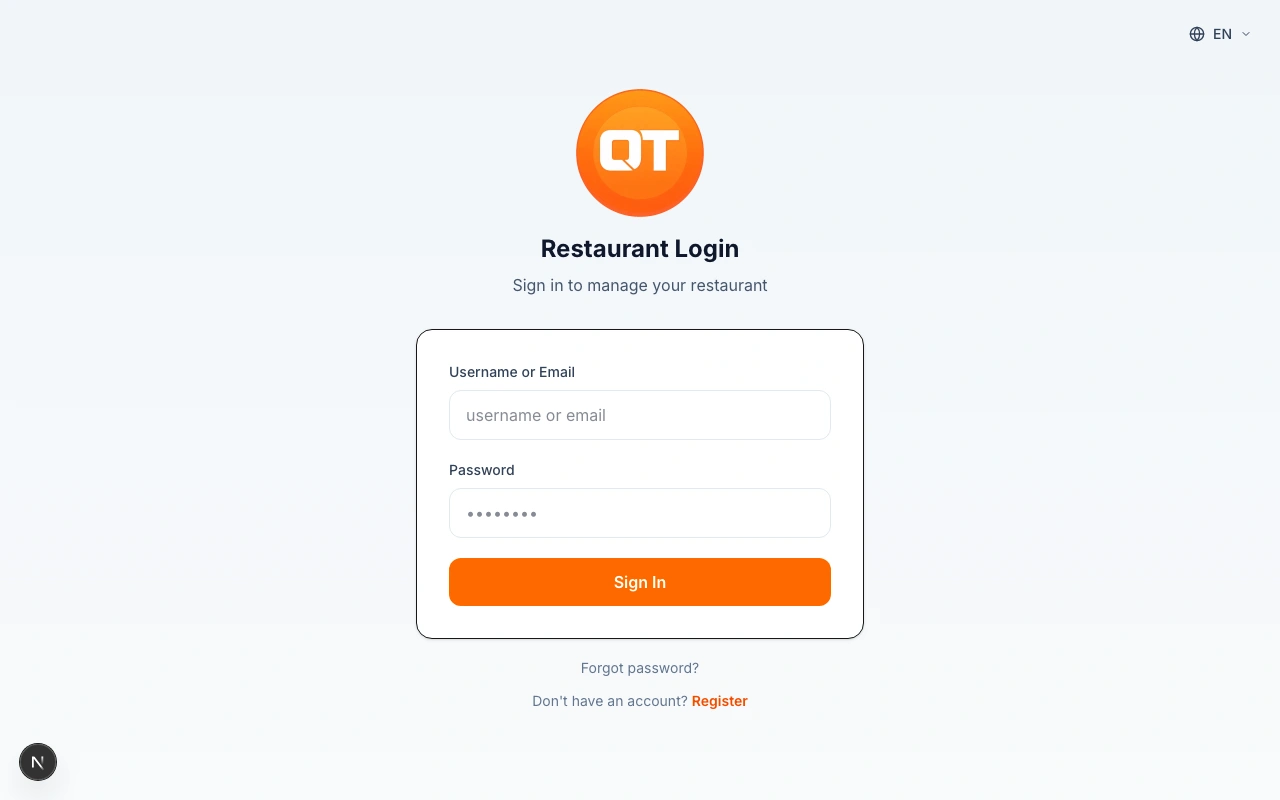
Visit the Ordering.Tools login page and create your account. If you already have a Ordering.Tools account, you can use the same credentials to log in. After registration, you'll be taken to the admin panel where you can manage everything.
If you already use Ordering.Tools for table reservations, your account works here too — no need to register again.
Create or Sync Your Venue
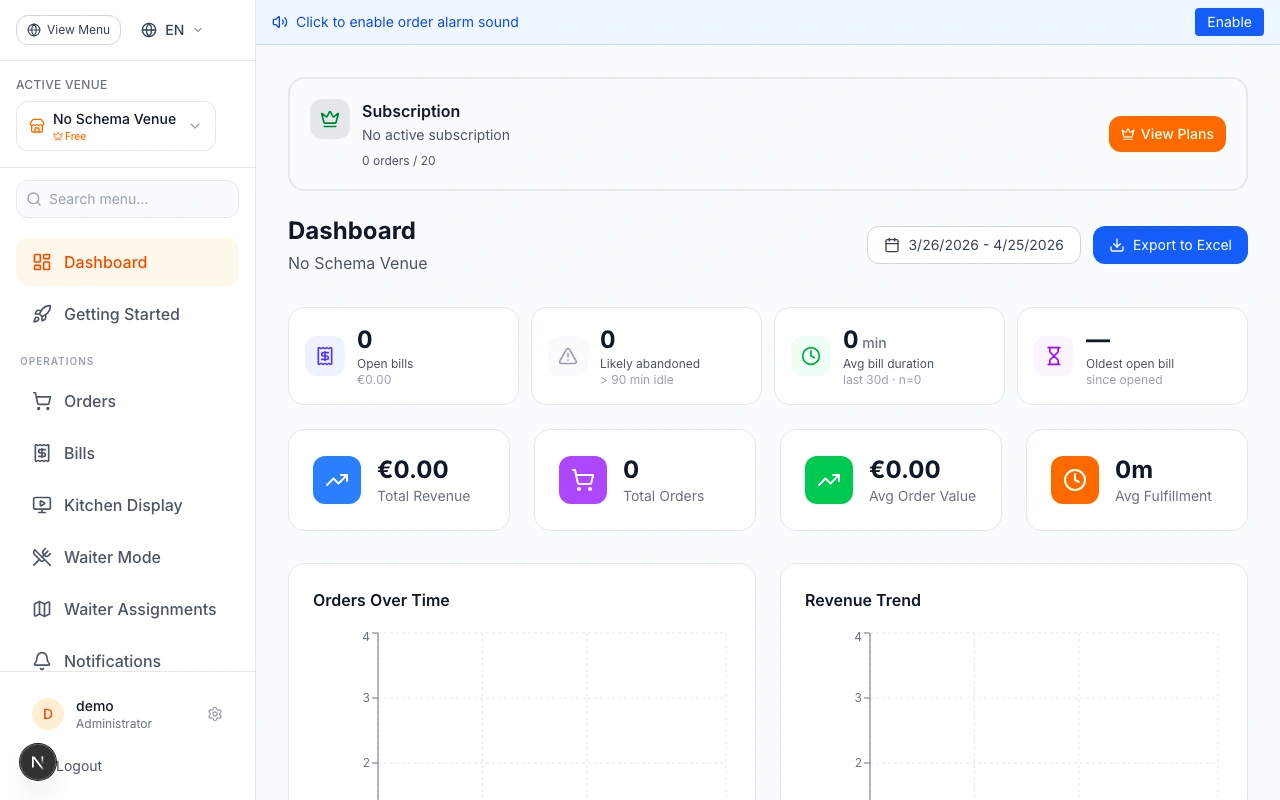
Once logged in, click "Sync Venues" in the sidebar to import your venues from Ordering.Tools. If you don't have any venues yet, click the "Create Venue" button. Fill in your venue name, and the system will generate a unique URL slug automatically. You can also set your venue's currency, primary language, and basic contact information.
Your venue slug determines your public menu URL. For example, if your slug is 'my-restaurant', your menu will be at www.ordering.tools/en/my-restaurant.
Preview Your Public Menu
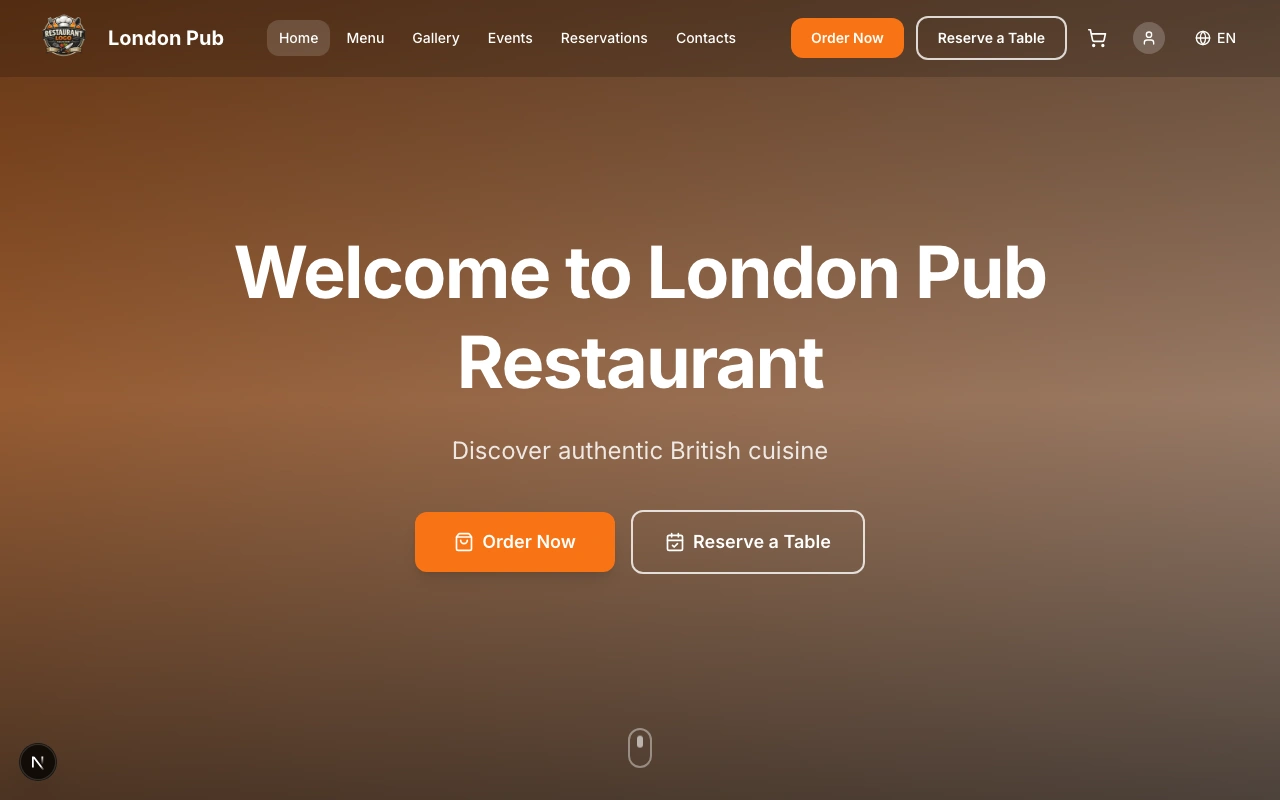
After creating your venue, click the "View Menu" button in the sidebar to see your public-facing menu page. Right now it will be empty, but this is where your customers will browse your products and place orders. Bookmark this URL — you'll come back to check how your menu looks as you add products.
Share this link with your team to get feedback on your menu before going live.
Install the Web App
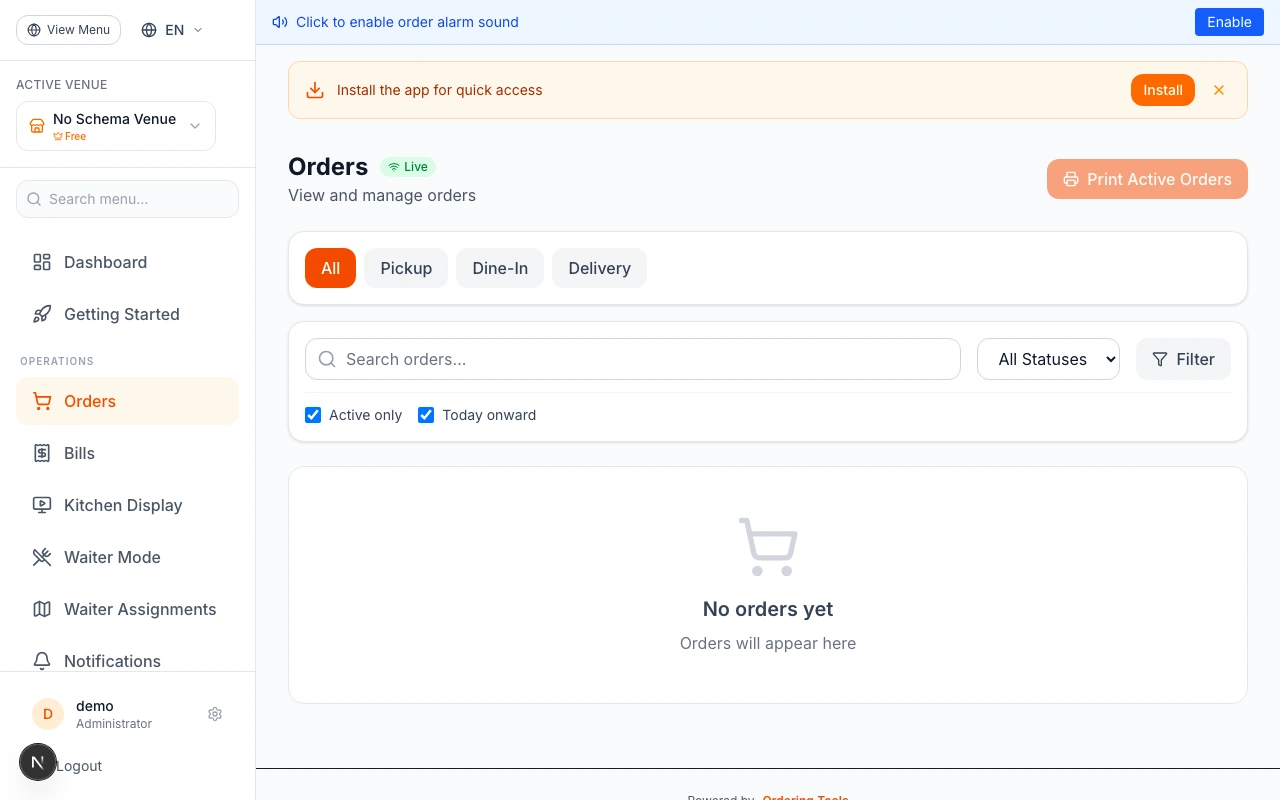
For faster access to the admin panel, install Ordering.Tools as a web app on your device. When you log in to the admin panel, you'll see an "Install" banner at the top of the page. Click the "Install" button and follow the prompts — the app will be added to your home screen or desktop just like a native application.
The web app gives you instant access without opening a browser, push notifications for new orders, and a full-screen experience optimized for managing your venue on the go.
The install prompt appears automatically when you visit the admin panel. If you dismissed it, it will reappear after 7 days, or you can install it from your browser's menu (look for "Install app" or "Add to Home Screen").
Ready to Get Started?
Apply what you've learned and set up your restaurant in minutes