
Branded Web App
Enable the Add to Home Screen install prompt so customers can install your menu as a branded app — no App Store required.
Navigate to Branded Web App Settings
In the Admin Panel, open the Settings menu in the sidebar and select Branded Web App. This page controls the install prompt that appears on your custom domain. The feature requires a verified custom domain and a venue logo — once both are in place, the toggle is enabled automatically.
The install prompt only appears on your custom domain (e.g. yourrestaurant.com). It is not shown on the shared platform URL — this is intentional, so the installed app always reopens your site correctly.
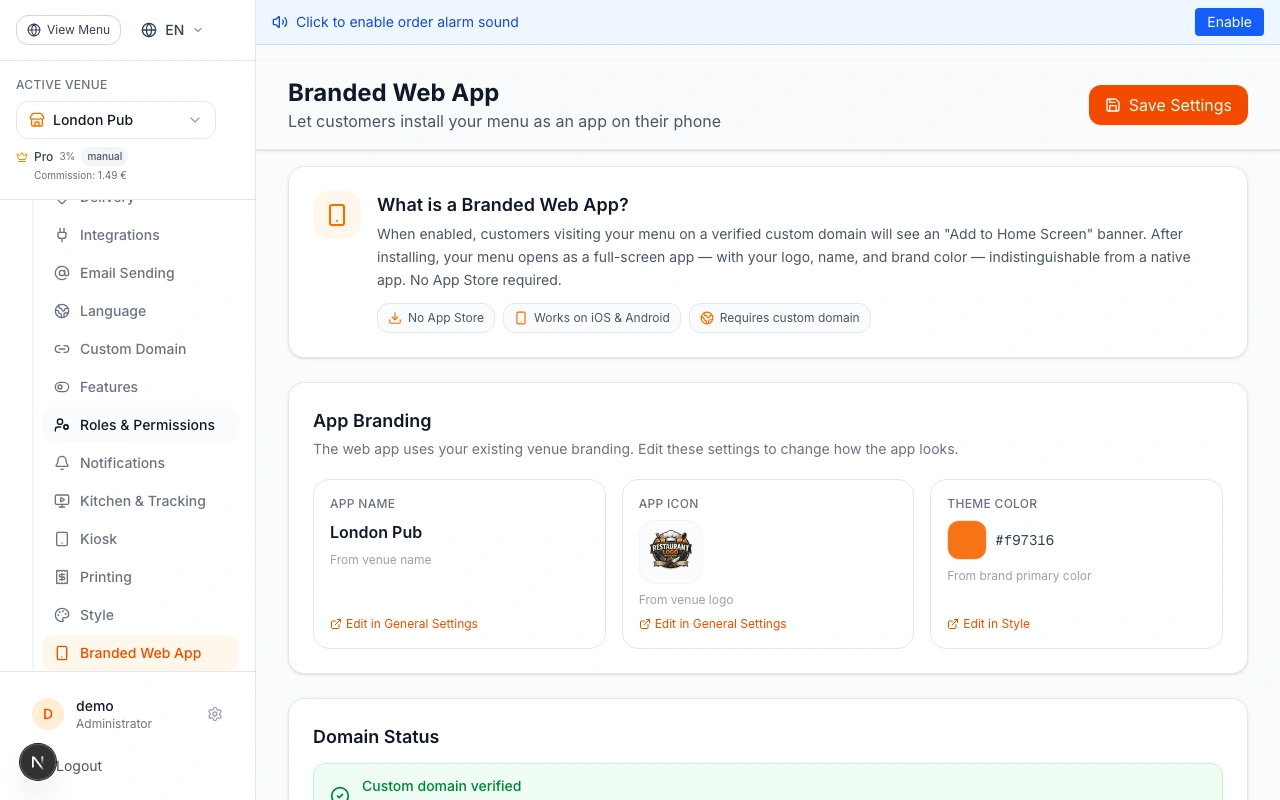
App Branding: Name, Icon & Color
The App Branding section shows exactly what the installed app will look like on a customer's phone. The app name comes from your venue name, the icon from your venue logo, and the theme color from your primary brand color. Each field has a direct link to edit it — venue name and logo are in General Settings, the theme color is in Style Settings.
Make sure your logo is a square PNG with a clean background — it will be displayed at 192×192px on Android and as the app icon on iOS. Upload it in Settings → General.
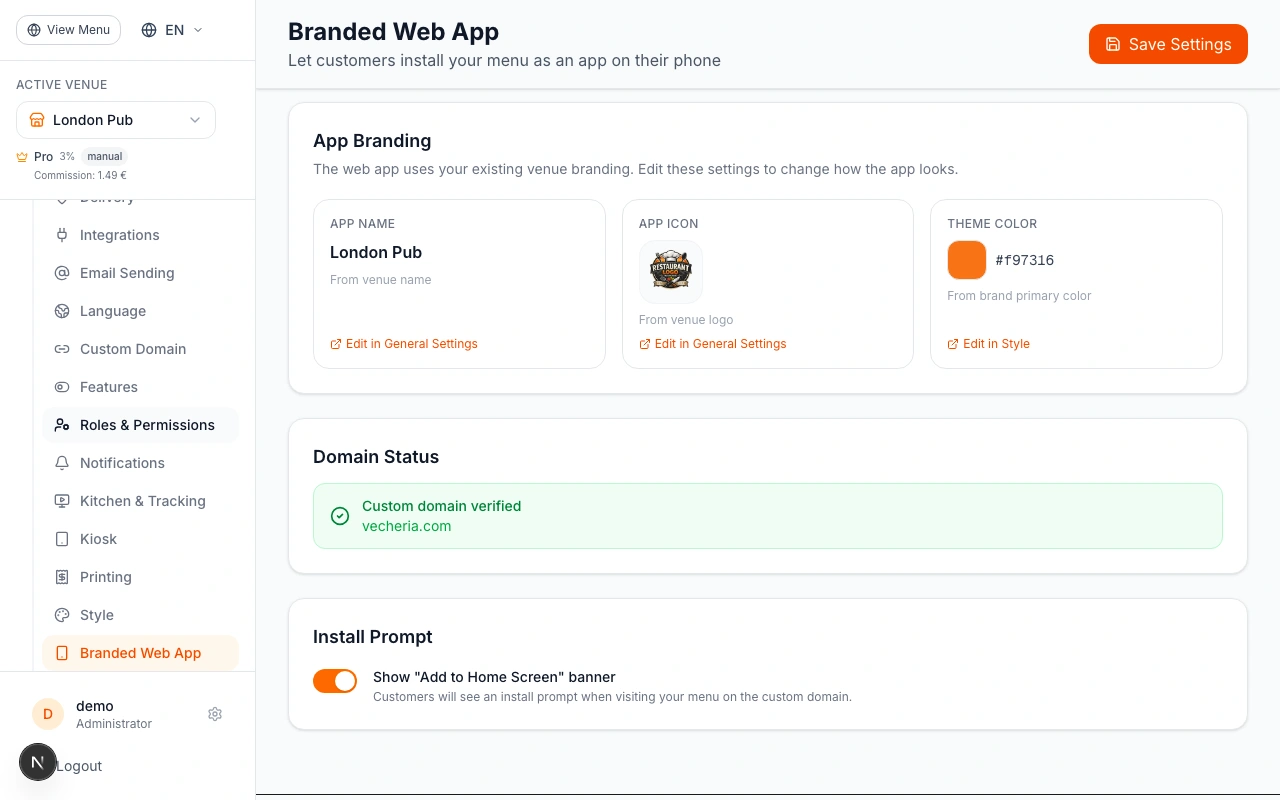
Domain Prerequisite
The Branded Web App requires a verified custom domain. The Domain Status section shows whether your domain is verified, pending verification, or not yet configured. Without a verified custom domain the install toggle is disabled — this ensures the installed app always reopens on your own URL, not a shared platform path.
To set up a custom domain, go to Website → Domain. You will need to add a CNAME record at your DNS provider pointing to the platform. Verification usually completes within minutes.
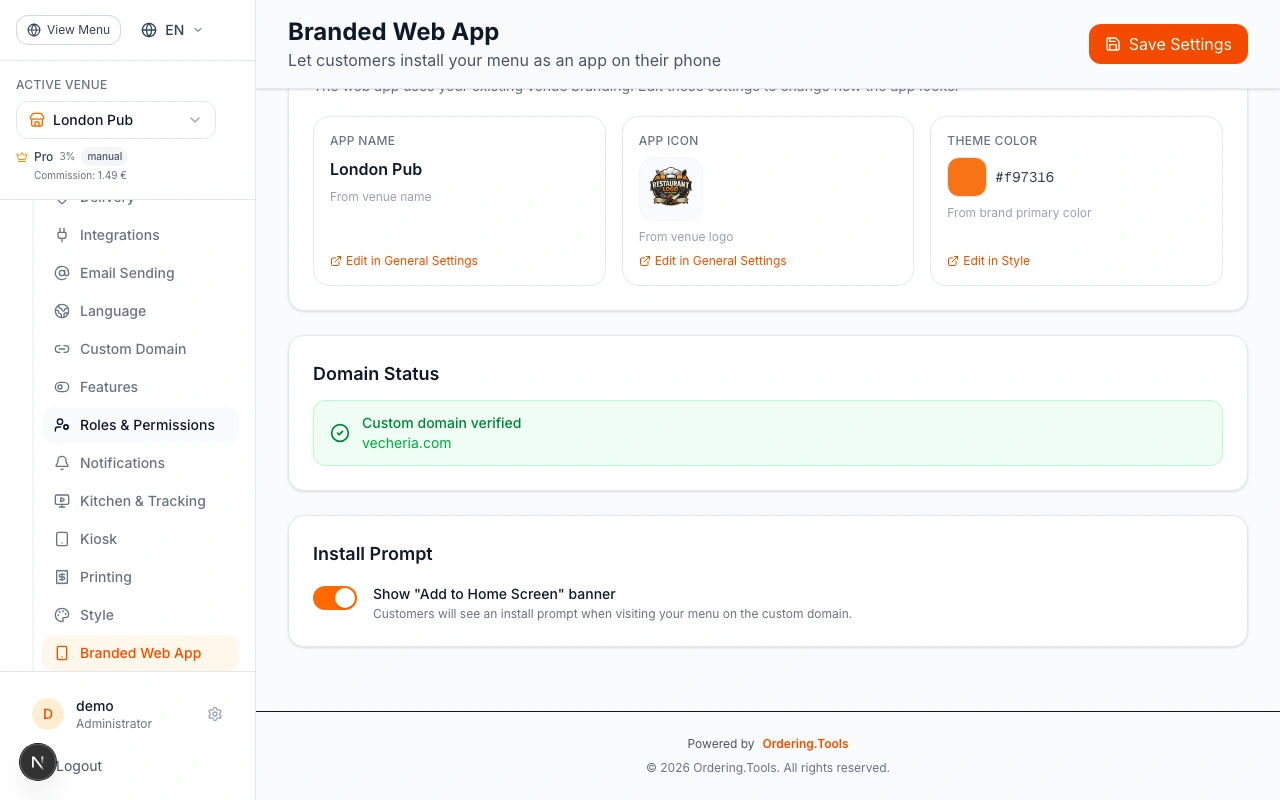
Enable the Install Prompt
Once your domain is verified and your logo is uploaded, the Install Prompt toggle becomes active. It is enabled by default. Toggle it off if you want to temporarily hide the install banner. Click Save to apply your settings. From this moment, customers visiting your menu on your custom domain will see the install banner at the bottom of the screen.
The banner respects a per-customer 7-day dismissal window — if a customer dismisses it, they won't see it again for 7 days. This prevents it from feeling intrusive.
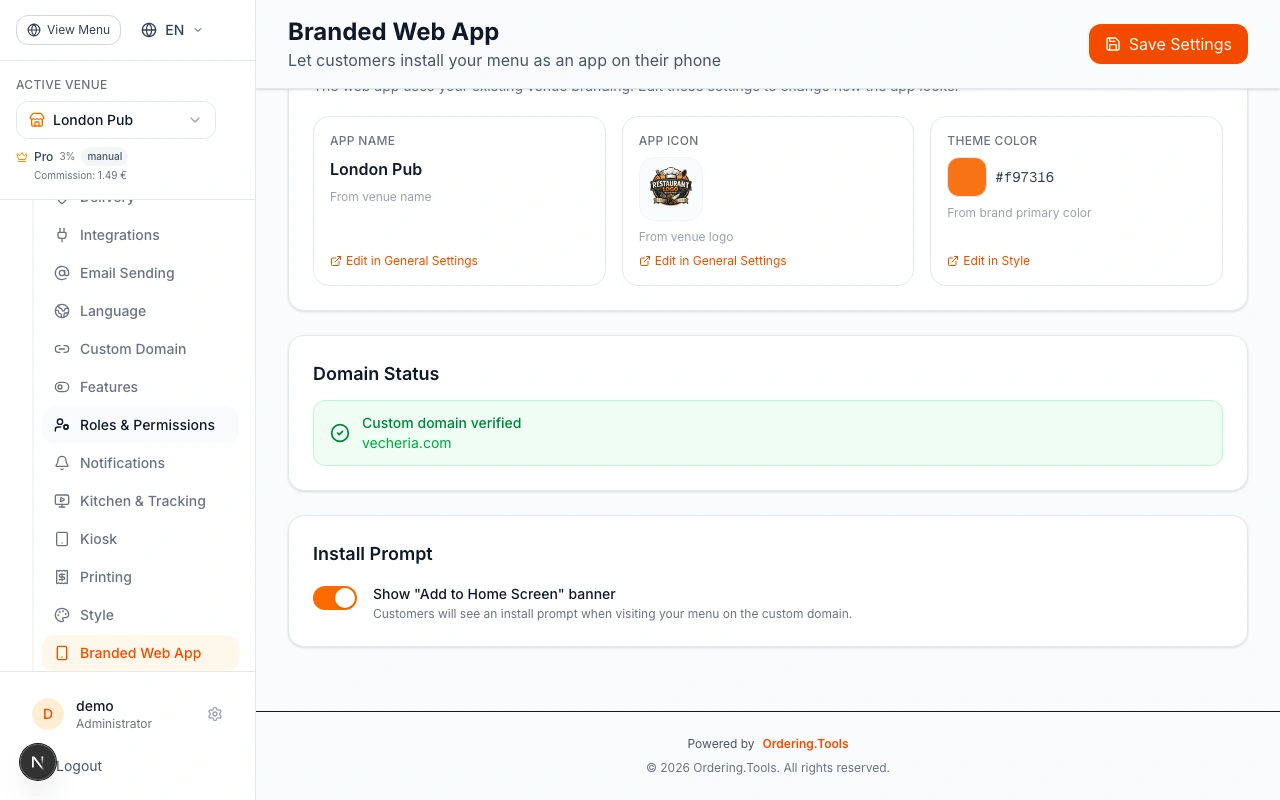
The Customer Install Experience
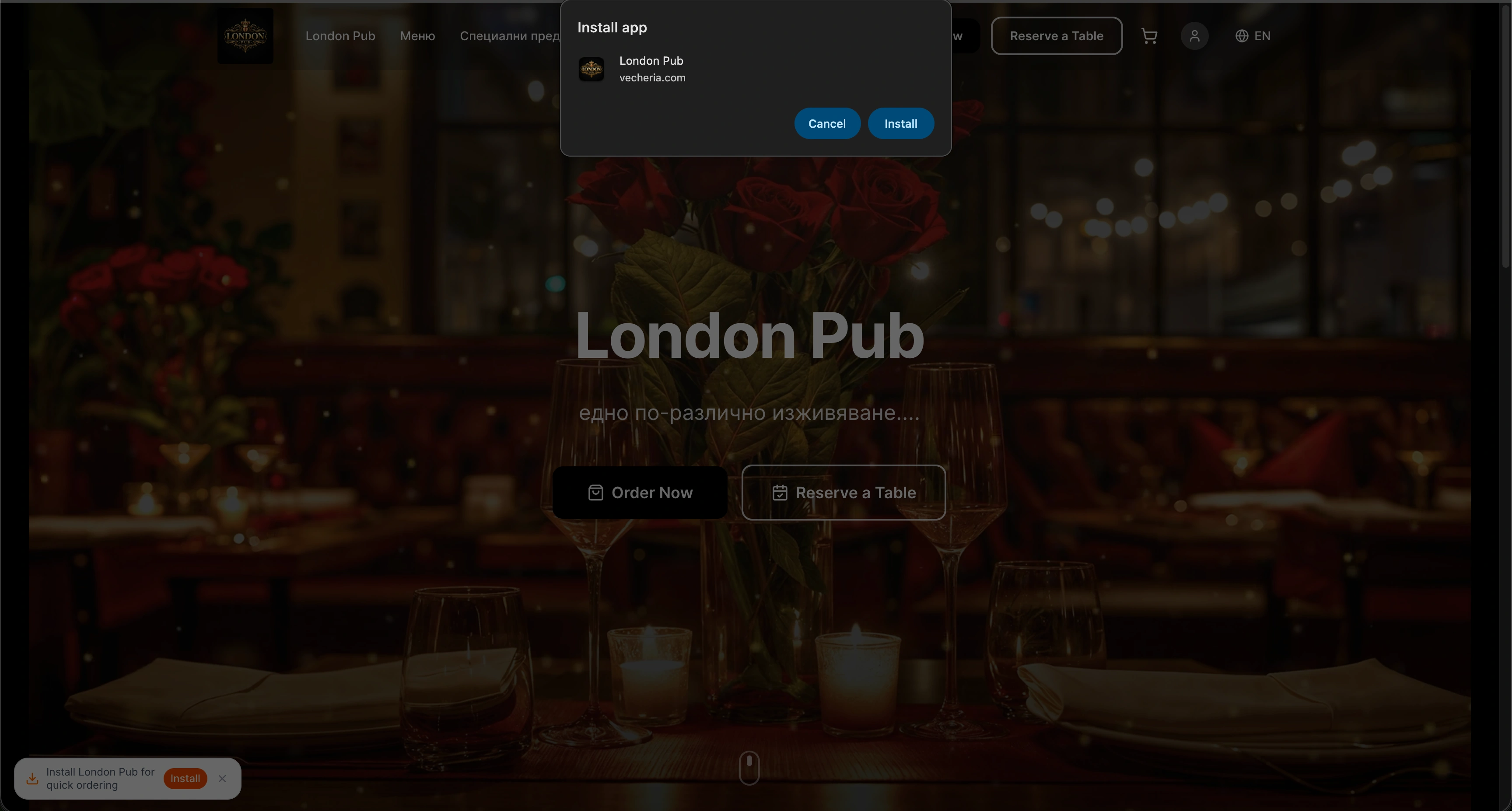
When a customer visits your menu on your custom domain, a small install banner appears at the bottom-left of the screen. It shows your venue name and an Install button. When they tap Install, the browser shows a native confirmation dialog with your venue name, domain, and icon. One tap to confirm — and your branded app is saved to their home screen, launching directly to your menu in full-screen mode.
On iOS (Safari), customers tap the Share button and select 'Add to Home Screen'. The banner guides them through this on supported browsers. On Android with Chrome, the native install dialog appears automatically.
Ready to Get Started?
Apply what you've learned and set up your restaurant in minutes