
SMS & Notifications Setup
Configure email, SMS, and web push notifications for every order event — and track every sent message in the Notification Center.
Three Channels, Nine Events
Ordering.Tools sends notifications through three channels: Email (always available), SMS (requires prepaid credit), and Web Push (browser notifications even when the tab is closed). Notifications fire on nine order events: New Order (staff alert), Order Confirmed, Order Preparing, Order Ready, Out for Delivery, Order Delivered, Order Picked Up, Order Cancelled (both customer and staff), and Scheduled Reminder (automated reminder before a future order is due). Each event can be independently toggled per channel for customers and staff separately.
Email is on by default for all events. SMS is off by default — enable it per-event once you have credit. You only pay for SMS messages that are actually sent.
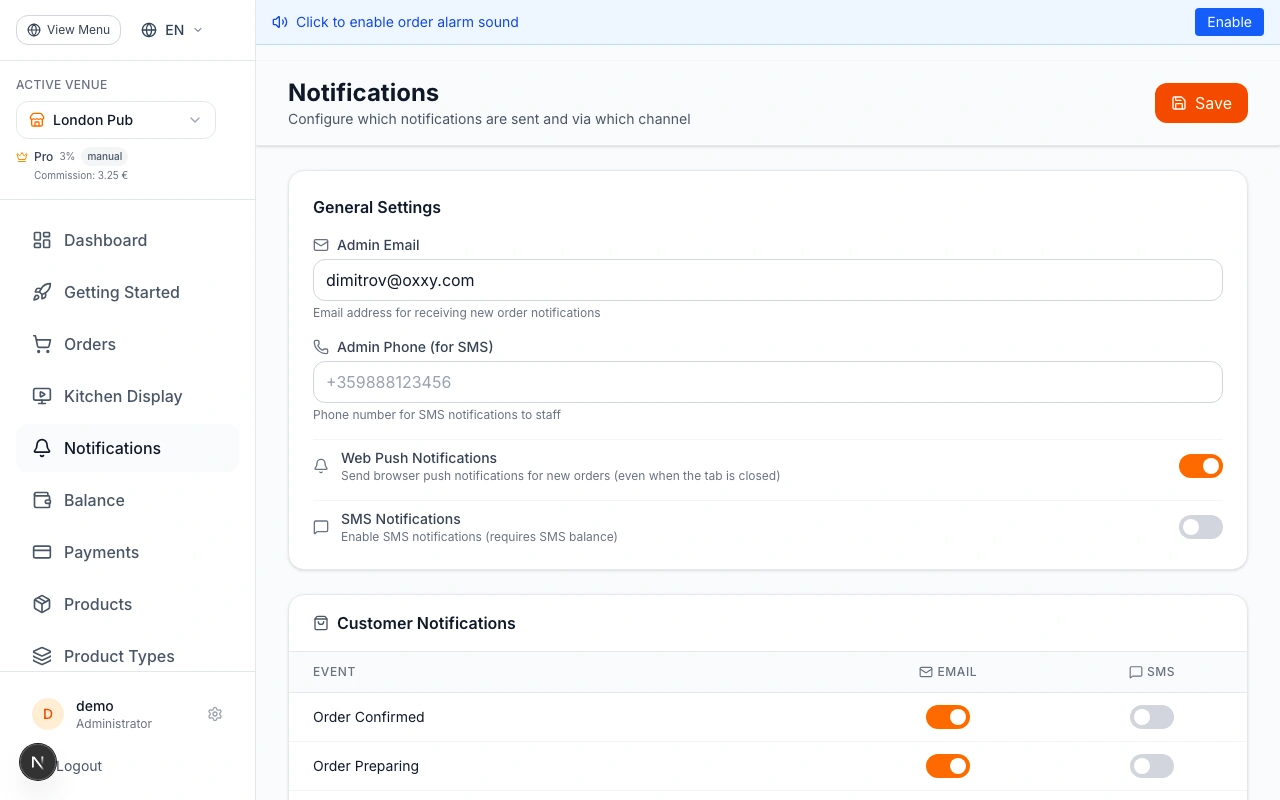
SMS Credit Balance
SMS notifications use prepaid credit from your account balance. Go to Admin → Balance to view your current credit. The page shows Total Balance and Available to Use — the difference is a €0.50 minimum reserve that is always held back. When the balance drops below €10, an automatic low-balance alert is sent to the admin email and phone. SMS pricing varies by destination: messages to Bulgaria, North Macedonia, and the US are routed via LinkMobility (~€0.05–€0.07 per SMS). All other countries use GatewayAPI (~€0.04–€0.08 per SMS). A 20% platform markup applies.
Standard Latin text fits 160 characters per SMS segment. Messages with Cyrillic or special characters use UCS-2 encoding (70 characters per segment). Keep messages short to stay within one segment.
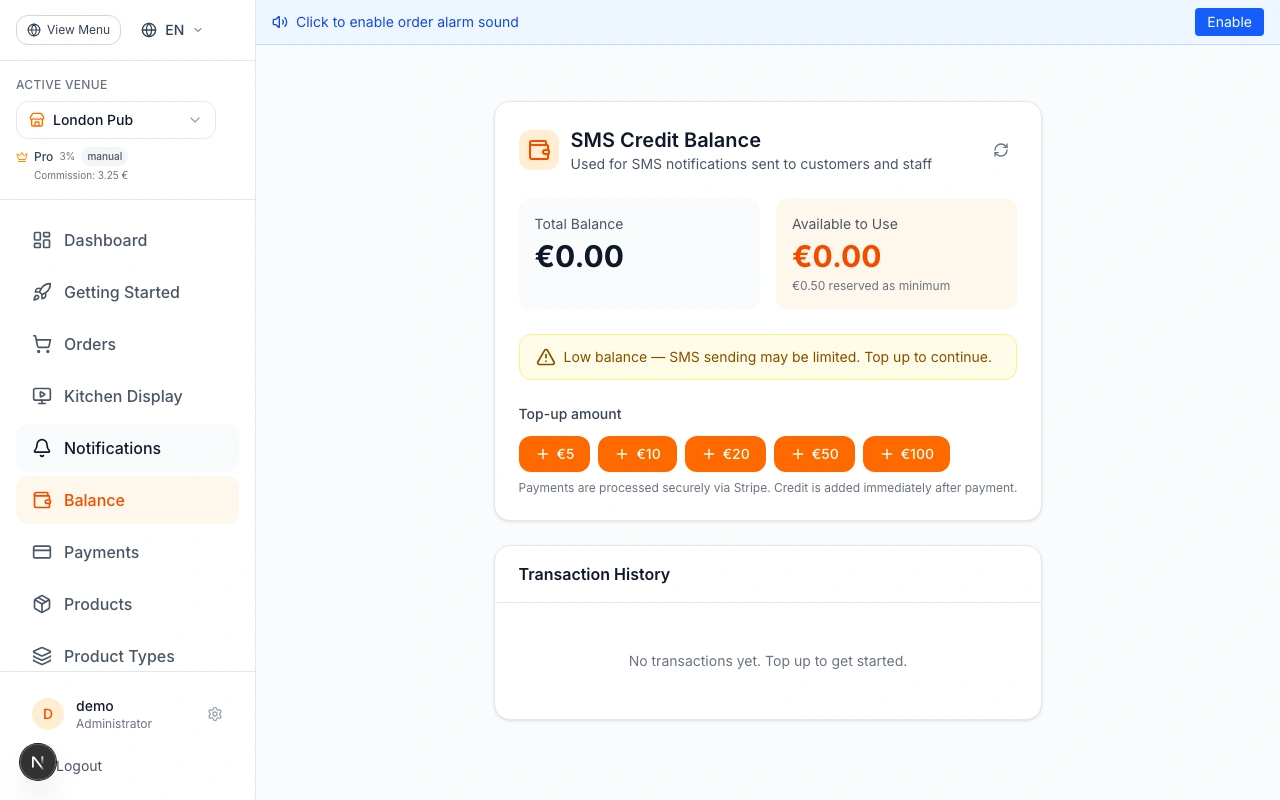
Top Up Your Balance
Click one of the preset top-up buttons: €5, €10, €20, €50, or €100. This opens a secure Stripe checkout page. After payment is confirmed, credit is added to your account immediately — no manual steps needed. The Transaction History below the top-up buttons shows a full ledger: Top-Up entries (credits added), SMS Charge entries (deducted per SMS sent), and Refund entries (returned for failed messages). All amounts are in EUR.
SMS charges are deducted after each successful send. Failed messages are not charged — if a message cannot be delivered, the cost is automatically refunded to your balance.
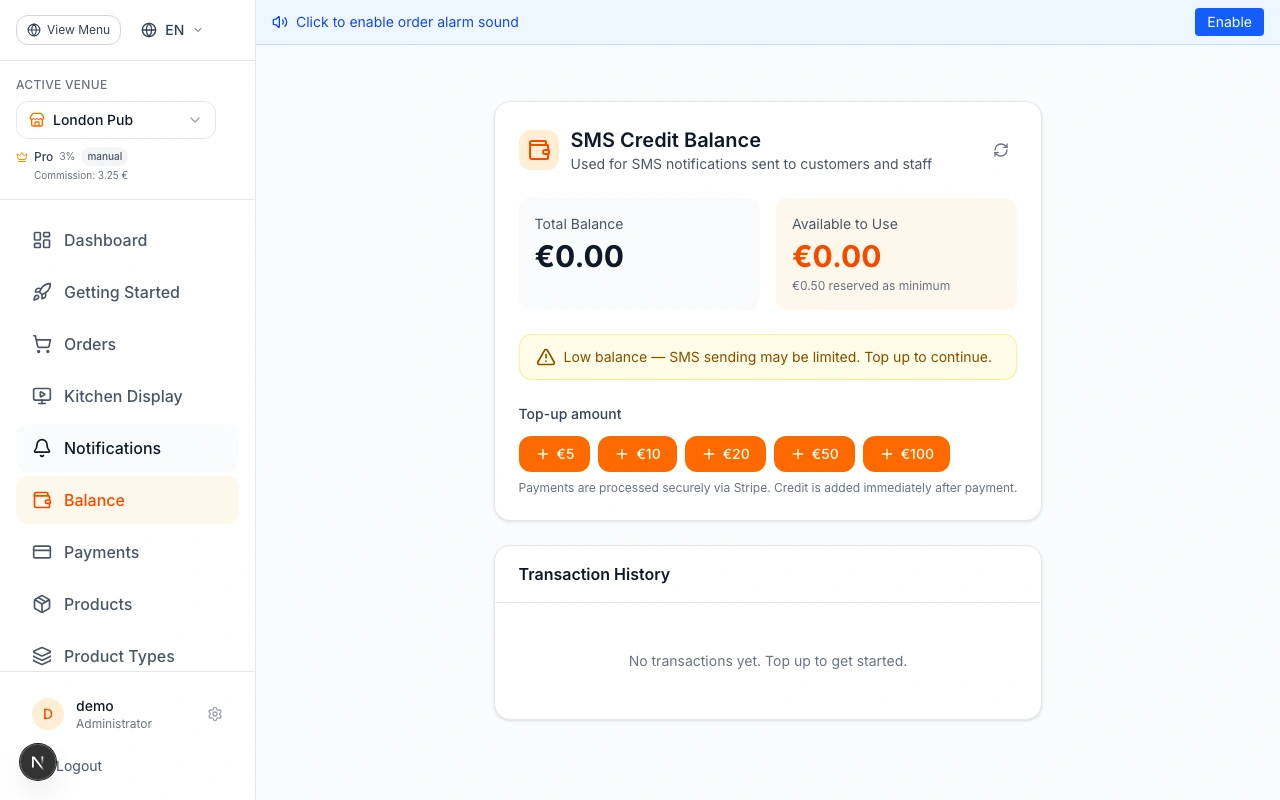
Enable SMS in Notification Settings
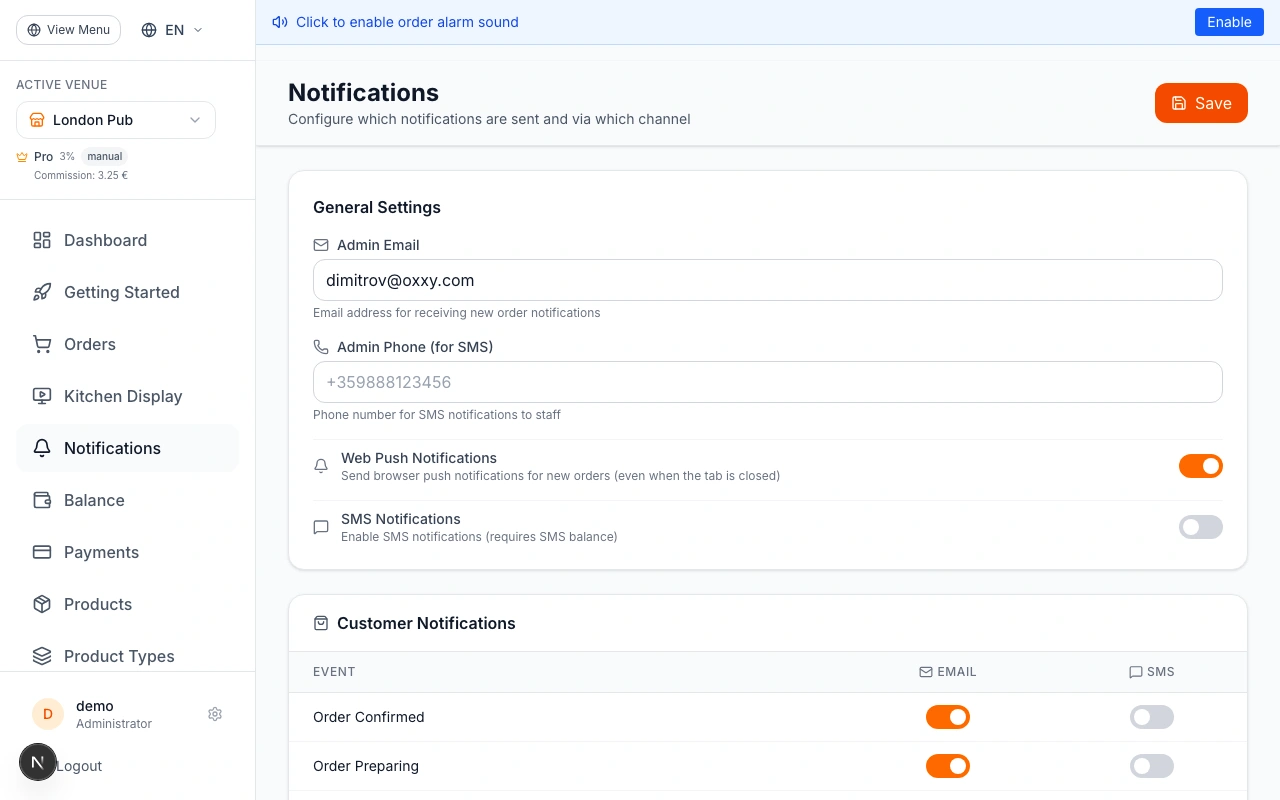
Go to Admin → Settings → Notifications. In the General Settings section: enter your Admin Email (for order alert emails), Admin Phone in international E.164 format (e.g. +359888123456) for staff SMS alerts, toggle Web Push Notifications on to receive browser push alerts for new orders, and toggle SMS Notifications on to enable SMS sending for this venue. The SMS toggle is the master switch — individual event toggles in the matrix below only take effect when this is on.
The admin phone number receives SMS alerts for New Order and Order Cancelled (staff-side events). Customer SMS goes to the phone number they entered at checkout.
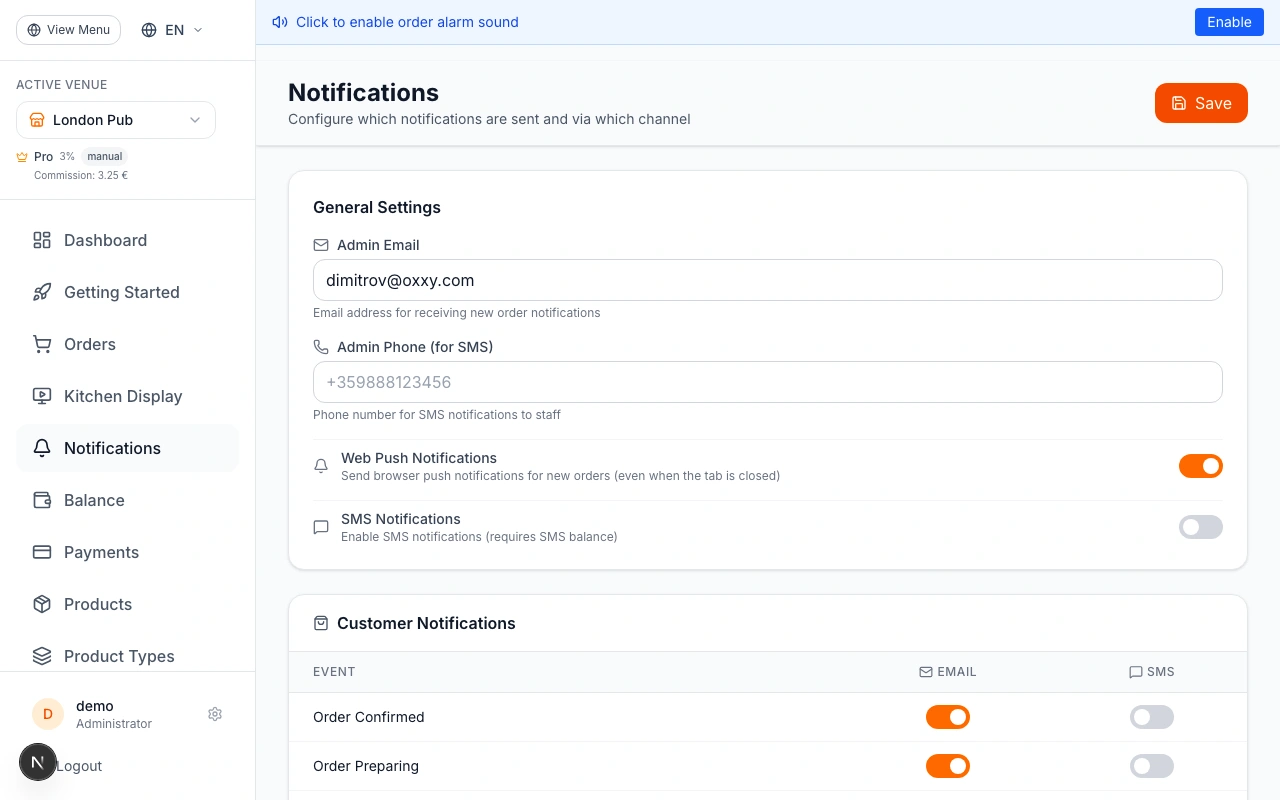
Configure the Notification Matrix
Below General Settings are two tables. Customer Notifications covers eight events (Order Confirmed, Preparing, Ready, Out for Delivery, Delivered, Picked Up, Cancelled, Scheduled Reminder) with Email and SMS toggle columns. Staff Notifications covers two events (New Order, Order Cancelled) with the same columns. Toggle any cell to change that channel for that event. Email is on by default; SMS is off by default. Click Save at the top-right when done. Missing rows in the database default to email-on, SMS-off — so you only need rows when you deviate from defaults.
Order Cancelled appears in both the Customer and Staff tables — toggling it in one section does not affect the other. You can have customer SMS on and staff SMS off for the same event, or any combination.
Track Notifications in the Center
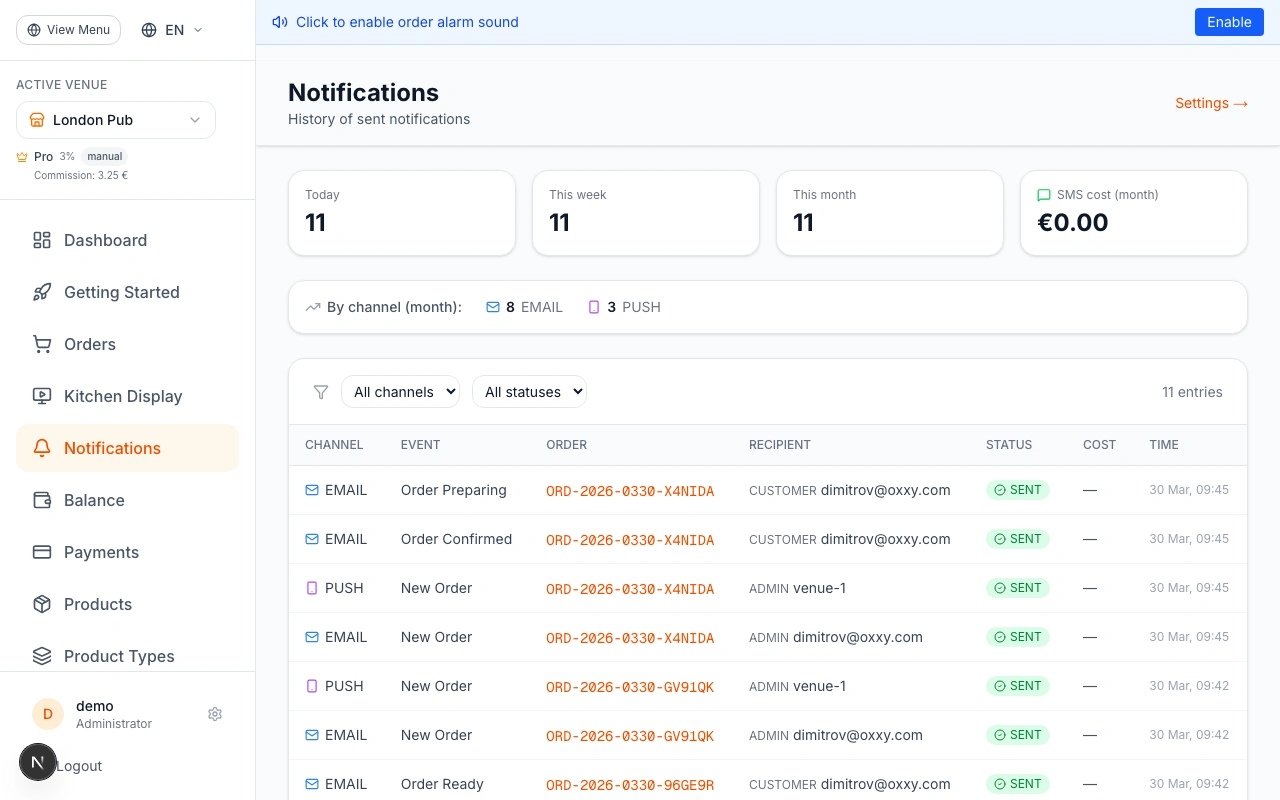
Go to Admin → Notifications to see the Notification Center. Four stat cards at the top show: Today, This Week, This Month totals, and monthly SMS cost in EUR. A channel breakdown shows how many Email, SMS, and Push messages were sent this month. The log table below lists every notification with: channel icon, event type, order number (clickable — jumps to order detail), recipient, delivery status badge (green = Sent/Delivered, red = Failed), SMS cost in EUR, and timestamp. Use the channel and status filters to drill into specific types.
Failed SMS messages show a red badge and are not charged. Click the order number in any log entry to jump directly to that order's detail page for full context.
Ready to Get Started?
Apply what you've learned and set up your restaurant in minutes